
How to Install MoxKit Addons for Elementor
Updated · MoxKit 1.4.4 · Download free on WordPress.org
This guide shows how to install MoxKit Addons for Elementor, activate it, add your first widget and choose which widgets to load. It takes about two minutes.
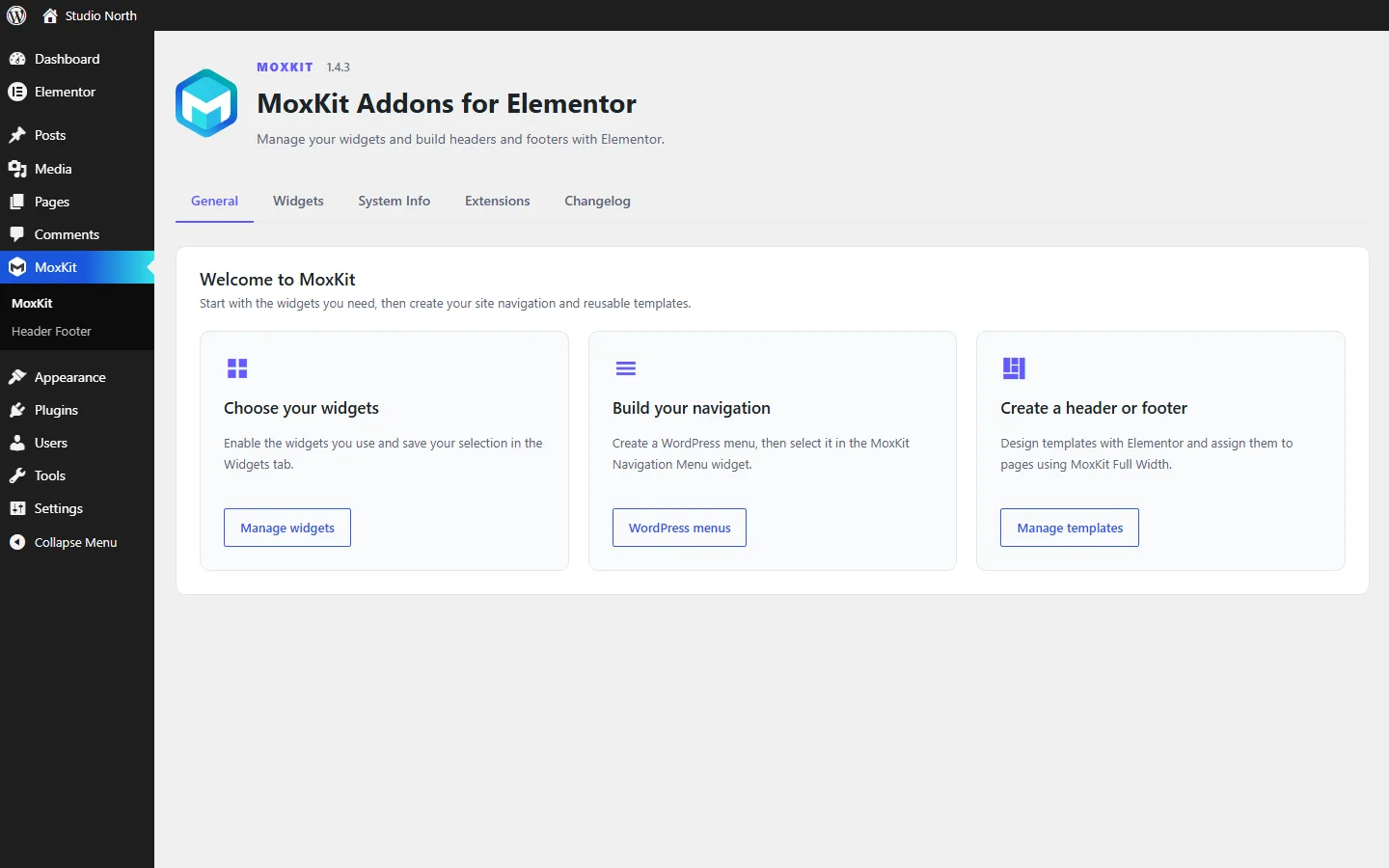
Table of contents
Before you install MoxKit Addons for Elementor
- WordPress 6.6 or newer and PHP 7.4 or newer.
- Elementor 3.25.0 or newer, installed and active. Elementor Pro is not required.
- An administrator account (to install plugins).
Install from the WordPress dashboard
- Go to Plugins > Add New Plugin.
- Search for MoxKit Addons for Elementor.
- Click Install Now, then Activate.
Install from a ZIP file
- Download the ZIP from WordPress.org.
- Go to Plugins > Add New Plugin > Upload Plugin.
- Choose the ZIP file, click Install Now and then Activate.
Always upload the complete ZIP. If files are missing from the package (for example after a failed FTP upload), see Troubleshooting.
Add your first MoxKit widget
- Open a page and click Edit with Elementor.
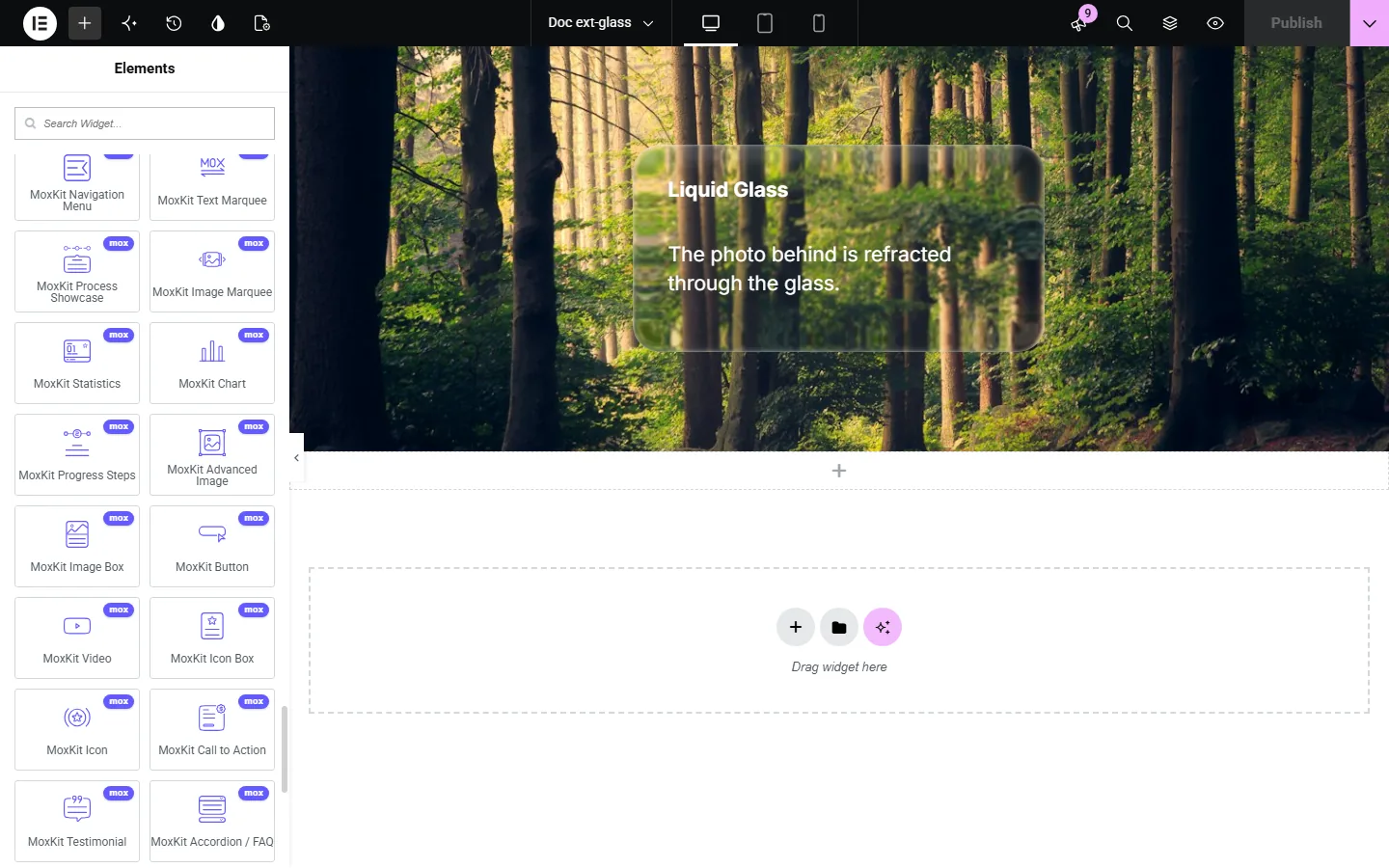
- In the widget panel, scroll to the MoxKit Addons category, or search for a widget such as "Button".
- Drag the widget into a Container, then change its settings in the Content and Style tabs.
- Click Publish or Update.
Check that MoxKit is working
- A MoxKit item appears in the WordPress admin menu, with the Dashboard and Header Footer pages.
- The Elementor panel shows the MoxKit Addons category with 29 widgets.
- Containers get new sections such as Style > Liquid Glass and Style > MoxKit Waves.
- MoxKit > System Info shows your MoxKit, Elementor, WordPress and PHP versions.
Choose which widgets to load
Open MoxKit > Widgets to switch individual widgets on or off. A disabled widget is not registered in Elementor and loads no files. See MoxKit dashboard for every tab.
Set up the MoxKit Full Width layout (optional)
To use a MoxKit header and footer, edit a page, open Page Attributes > Template (or the Elementor page settings) and choose MoxKit Full Width. Then follow the header and footer builder guide.
Recommended next steps
- Set your brand colors and fonts in Elementor > Site Settings; MoxKit widgets use them by default.
- Create a WordPress menu under Appearance > Menus for the Navigation Menu widget.
- Build a header and a footer in the header and footer builder.
- Switch off the widgets you will not use, to keep the editor panel tidy.
- Bookmark the widget reference for the settings of each widget.
Test on a staging site first (recommended)
If your site is busy or business critical, install or update MoxKit on a staging copy first. Most hosts offer one-click staging. Check your key pages, the header and footer, and the Elementor editor, then repeat the steps on the live site.
Updating
MoxKit updates like any plugin from WordPress.org. After an update MoxKit clears the Elementor CSS cache once, so pages pick up the new styles. If something still looks old, use Elementor > Tools > Regenerate CSS & Data.
Uninstalling
Deactivating keeps everything. Deleting the plugin removes only MoxKit's own settings (widget and extension switches, the header/footer assignment) and the post view counts. Your templates and page content stay in the database and come back if you install MoxKit again. Change page layouts away from MoxKit Full Width first if you want the theme header back.
Installation FAQ
Where do I find the MoxKit widgets in Elementor?
In the Elementor widget panel, in the category MoxKit Addons. You can also type the widget name in the panel search.
Can I install MoxKit without Elementor?
WordPress requires Elementor to be active first (MoxKit declares it as a required plugin). Install and activate Elementor, then MoxKit.
How do I update MoxKit?
Updates appear in Dashboard > Updates like any WordPress.org plugin. After updating, MoxKit clears Elementor's cache once so pages show the new styles.