
Elementor Post Categories Widget
Updated · MoxKit 1.4.4 · Download free on WordPress.org
The Elementor post categories widget lists categories, tags or any public taxonomy. Show them as a list (optionally nested), pills, cards or count tiles, with a post count in three formats.
- Widget name MoxKit Post Categories
- Panel category MoxKit Addons
- Settings 59+
- Requires Elementor 3.25+ (free)
- Price Free
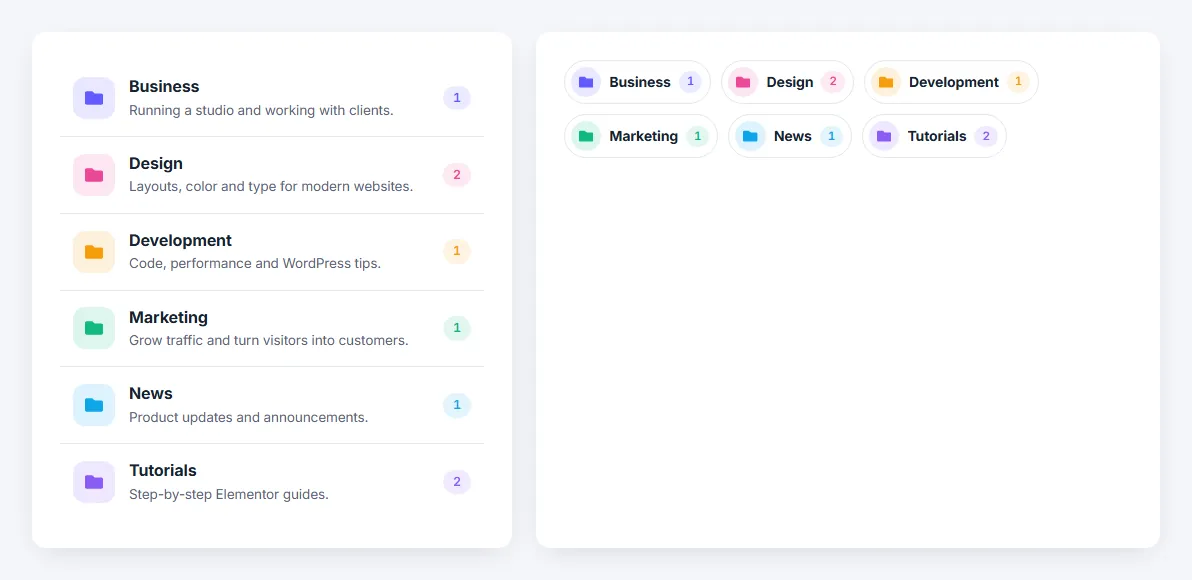
Table of contents
What is the Elementor post categories widget?
Give every term the same icon, its first letter, or its own icon and color. The category being viewed is highlighted automatically.
Like every MoxKit widget, the Post Categories has Content and Style tabs with responsive settings, typography, colors and box styling, and it keeps Elementor's Advanced tab. You can switch it off under MoxKit > Widgets if you do not use it; a disabled widget loads no files.
Key features
- Taxonomy: categories, tags or any public taxonomy.
- Show all, top-level, children of a parent, or hand-picked terms; exclude terms.
- Order, limit, hide empty, nest subcategories, count posts in subcategories.
- Styles: list, pills, cards, tiles; vertical or horizontal; 1–6 columns.
- Icons: one icon, initials or none; palette or one accent color; per-term icon, color and name.
- Post count formats, description, arrow; hover effects: lift, slide, fill, glow.
How to add the Elementor post categories widget
Follow these steps to add the widget to a page. You need MoxKit Addons for Elementor installed and Elementor active.
- Open the page in Elementor (Pages > Edit with Elementor).
- In the widget panel, search for "Post Categories" or scroll to the MoxKit Addons category.
- Drag the Post Categories widget into a Container.
- Choose the Taxonomy and which terms to show.
- Pick a Style in the Layout section.
- Set icons and colors under Icons & Colors.
- Click Update (or Publish) to save the page.
Designs and examples
These screenshots were taken from a live WordPress site running MoxKit 1.4.4 and Elementor. They show the Post Categories with the settings described in each caption.


Elementor post categories widget settings: Content tab
The Content tab holds what the widget shows and how it behaves. It has 3 sections and about 34 settings. Settings marked per device can have a different value on desktop, tablet and mobile.
Categories
| Setting | Type | Options and notes |
|---|---|---|
| Taxonomy | Select | Categories, Tags (default: Categories) |
| Show | Select | All terms, Top level only, Children of a term, Selected terms (default: All terms) |
| Parent | Multi-select | Categories: Uncategorized |
| Terms | Multi-select | Categories: Uncategorized |
| Exclude | Multi-select | Categories: Uncategorized |
| Order by | Select | Name, Number of posts, Slug, Date created, The order selected above (default: Name) |
| Order | Select | Ascending, Descending (default: Ascending) |
| Limit | Number | 0 shows them all. |
| Hide terms without posts | Toggle | On / Off (default: On) |
| Nest subcategories under their parent | Toggle | On / Off |
| Count posts in subcategories too | Toggle | On / Off |
| Post count | Toggle | On / Off (default: On) |
| Count format | Select | 12, (12), 12 posts (default: 12) |
| Description | Toggle | On / Off |
| Description length (words) | Number | |
| Arrow | Toggle | On / Off |
Icons & Colors
| Setting | Type | Options and notes |
|---|---|---|
| Icon | Select | Library icon, First letter, None (default: Library icon) |
| Icon for every term | Icon | |
| Colors | Select | A term set below with its own color always uses it. One accent color, Palette (each term in turn) (default: Palette (each term in turn)) |
| Accent | Color | |
| Palette color 1 | Color | |
| Palette color 2 | Color | |
| Palette color 3 | Color | |
| Palette color 4 | Color | |
| Palette color 5 | Color | |
| Palette color 6 | Color | |
| Per-term icon & color | List | Each item: Term, Icon, Color, Custom name |
Layout
| Setting | Type | Options and notes |
|---|---|---|
| Style | Select | List, Pills, Cards, Count tiles (default: List) |
| Direction | Select | Vertical, Horizontal (default: Vertical) |
| Columns per device | Select | 1, 2, 3, 4, 5, 6 (default: 3) |
| Gap per device | Slider | |
| Alignment per device | Choice | Left, Center, Right |
| Hover effect | Select | Lift, Slide, Fill with the accent, Accent glow, None (default: Slide) |
| Dividers between rows | Toggle | On / Off (default: On) |
Elementor post categories widget settings: Style tab
The Style tab controls the look of every part of the widget: 4 sections, about 25 settings. Elementor's own Advanced tab (margin, padding, motion effects, responsive visibility, custom CSS) is available as usual.
Items
| Setting | Type | Options and notes |
|---|---|---|
| Background | Color | |
| Border color | Color | |
| Box shadow | Group | All the usual Elementor box shadow settings. |
| Background (hover) | Color | |
| Border color (hover) | Color | |
| Box shadow (hover) | Group | All the usual Elementor box shadow settings. |
| Border | Group | All the usual Elementor border settings. |
| Border radius per device | Spacing | |
| Padding per device | Spacing | |
| Divider color | Color |
Icon
| Setting | Type | Options and notes |
|---|---|---|
| Shape | Select | Soft tinted, Solid, Outline, Plain (default: Soft tinted) |
| Icon size per device | Slider | |
| Box size per device | Slider | |
| Corner radius per device | Slider | |
| Typography | Group | All the usual Elementor typography settings. |
Name
| Setting | Type | Options and notes |
|---|---|---|
| Typography | Group | All the usual Elementor typography settings. |
| Color | Color | |
| Hover / focus color (hover) | Color | |
| Current term color | Color | |
| Typography | Group | All the usual Elementor typography settings. |
| Description color | Color |
Count
| Setting | Type | Options and notes |
|---|---|---|
| Look | Select | Tinted badge, Solid badge, Plain text (default: Tinted badge) |
| Typography | Group | All the usual Elementor typography settings. |
| Color | Color | |
| Background | Color |
Tips and best practices
- Add category descriptions in Posts > Categories; the cards style can show them.
- Use pills in a blog sidebar and cards on a blog home page.
Post Categories FAQ
Can it show tags instead of categories?
Yes. Set Taxonomy to Tags or any public taxonomy.
Is the current category highlighted?
Yes, on category archive pages.
Summary
The Elementor post categories widget in MoxKit is free, works with the free version of Elementor and loads its files only on pages that use it. List, pills, cards or count tiles, icons and colors per term and post counts. Install MoxKit Addons for Elementor from WordPress.org, drag the Post Categories widget onto a page and start with the settings above.