
Elementor Popular Posts Widget
Updated · MoxKit 1.4.4 · Download free on WordPress.org
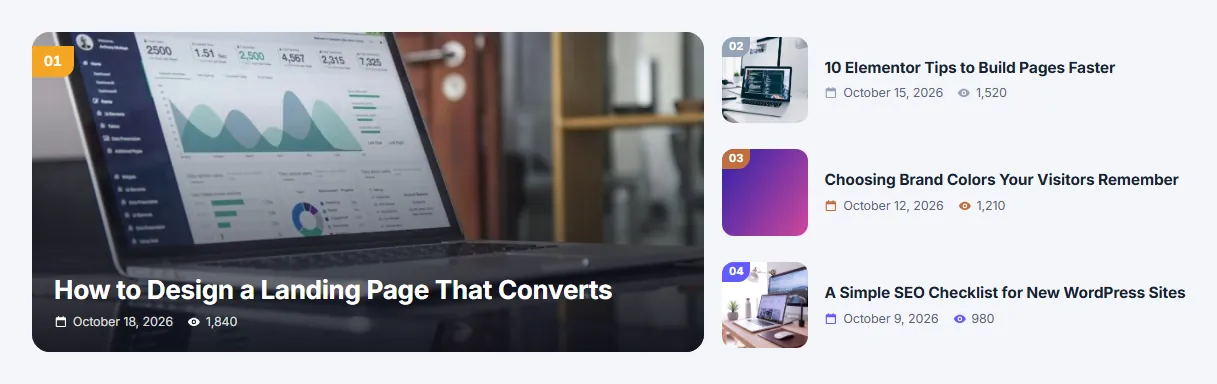
The Elementor popular posts widget shows your most viewed, most commented, latest, recently updated or random posts. Lay them out as a numbered list, a text ranking, cards, image overlays or a featured post with the rest beside or below it.
- Widget name MoxKit Popular Posts
- Panel category MoxKit Addons
- Settings 72+
- Requires Elementor 3.25+ (free)
- Price Free
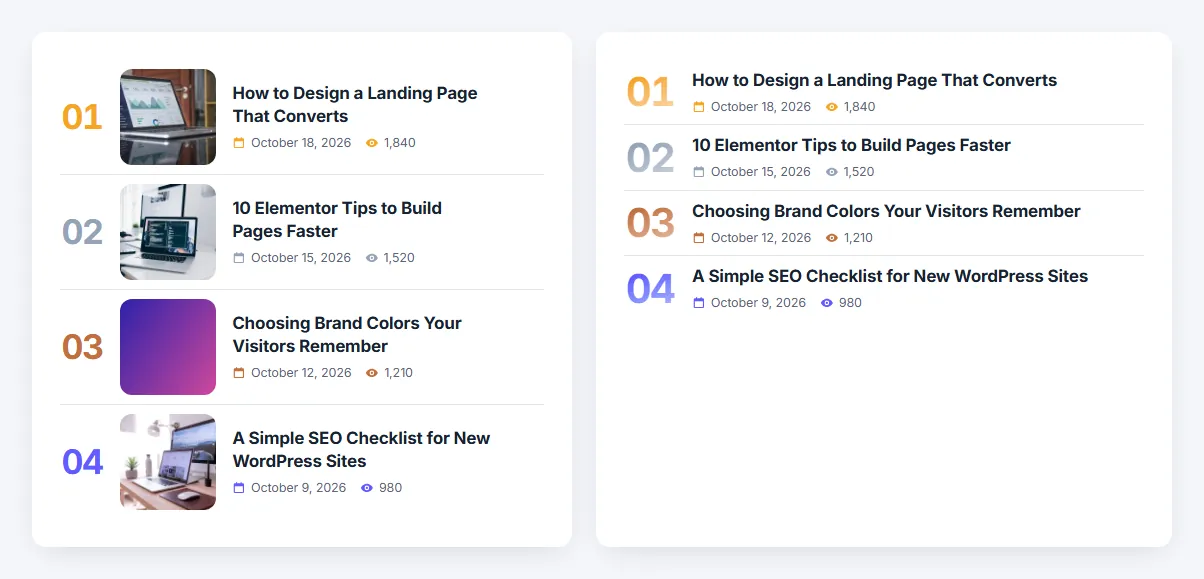
Table of contents
What is the Elementor popular posts widget?
Rank numbers come in seven looks (big, circle, square, outline, gradient, ribbon, watermark) and four color schemes: one color, gold/silver/bronze medals, a blend from first to last, or a palette.
Like every MoxKit widget, the Popular Posts has Content and Style tabs with responsive settings, typography, colors and box styling, and it keeps Elementor's Advanced tab. You can switch it off under MoxKit > Widgets if you do not use it; a disabled widget loads no files.
Key features
- Rank by views, comments, date, last update or random; filter by category/tag and publish date.
- Views from the MoxKit Post View Counter or another plugin's custom field.
- Styles: list, ranking, cards, overlay, featured; stacked, side by side or swipeable carousel.
- Image size and shape, excerpt, category badge, title lines.
- Details: date, views, comments, author, category, reading time.
- Rank number formats (1, 01, #1, #01), looks and color schemes.
How to add the Elementor popular posts widget
Follow these steps to add the widget to a page. You need MoxKit Addons for Elementor installed and Elementor active.
- Open the page in Elementor (Pages > Edit with Elementor).
- In the widget panel, search for "Popular Posts" or scroll to the MoxKit Addons category.
- Drag the Popular Posts widget into a Container.
- Choose Rank by. For "Most viewed", turn on the Post View Counter under MoxKit > Extensions.
- Pick a Style and direction.
- Choose the details to show and the rank number look.
- Click Update (or Publish) to save the page.
Designs and examples
These screenshots were taken from a live WordPress site running MoxKit 1.4.4 and Elementor. They show the Popular Posts with the settings described in each caption.


Elementor popular posts widget settings: Content tab
The Content tab holds what the widget shows and how it behaves. It has 3 sections and about 42 settings. Settings marked per device can have a different value on desktop, tablet and mobile.
Posts
| Setting | Type | Options and notes |
|---|---|---|
| Post type | Select | Posts, Pages, Floating Elements, My Templates, Header & Footer Templates (default: Posts) |
| Rank by | Select | Most viewed, Most commented, Latest, Recently updated, Random (default: Most viewed) |
| Views from | Select | MoxKit Post View Counter, Another plugin (custom field) (default: MoxKit Post View Counter) |
| Custom field name | Text | The field where your view counter plugin stores the number of views, for example post_views_count or views. |
| Published within | Select | Any time, Last 7 days, Last 30 days, Last 3 months, Last year |
| Only from these categories / tags | Multi-select | Categories: Uncategorized |
| Number of posts | Number | |
| Skip the first | Number | |
| Leave out the post being viewed | Toggle | On / Off (default: On) |
| Text when there are no posts | Text |
Layout
| Setting | Type | Options and notes |
|---|---|---|
| Style | Select | Numbered list with images, Ranking (text only), Cards, Image with text on top, Featured first post + list (default: Numbered list with images) |
| Direction | Select | Vertical (stacked), Horizontal (side by side), Horizontal, swipeable row (default: Vertical (stacked)) |
| The rest of the posts | Select | Beside the featured post, Below it, side by side (default: Beside the featured post) |
| Columns per device | Select | For the swipeable row: how many posts are visible at once. 1, 2, 3, 4, 5, 6 (default: 3) |
| Gap per device | Slider | |
| Previous / next buttons | Toggle | On / Off (default: On) |
| Image | Toggle | On / Off (default: On) |
| Image size | Select | Thumbnail, Medium, Medium large, Large (default: Medium large) |
| Image shape per device | Select | Default for the style, 1:1, 4:3, 3:2, 16:9, 3:4, 4:5 |
| Excerpt | Toggle | On / Off |
| Excerpt length (words) | Number | |
| Details | Multi-select | Shown in the order you pick them. Date, Views, Comments, Author, Category, Reading time |
| Category badge on the image | Toggle | On / Off |
| Title HTML tag | Select | H2, H3, H4, H5, H6, p (default: H3) |
| Title lines | Select | All, 1, 2, 3, 4 |
Rank Numbers
| Setting | Type | Options and notes |
|---|---|---|
| Show rank numbers | Toggle | On / Off (default: On) |
| Format | Select | 1, 01, #1, #01 (default: 01) |
| Look | Select | Large number, Circle badge, Rounded square badge, Outlined number, Gradient number, Ribbon on the image corner, Large faded number behind (default: Large number) |
| Colors | Select | Also used for the accent bar, the badge, and hover details. One color, Gold, silver, bronze for the top 3, Blend from first to last, Palette (each post in turn) (default: Gold, silver, bronze for the top 3) |
| Color | Color | With medals: the color after the top 3. |
| Gold | Color | |
| Silver | Color | |
| Bronze | Color | |
| First post | Color | |
| Last post | Color | |
| Palette color 1 | Color | |
| Palette color 2 | Color | |
| Palette color 3 | Color | |
| Palette color 4 | Color | |
| Palette color 5 | Color | |
| Palette color 6 | Color | |
| Accent bar in the rank color | Toggle | On / Off |
Elementor popular posts widget settings: Style tab
The Style tab controls the look of every part of the widget: 8 sections, about 30 settings. Elementor's own Advanced tab (margin, padding, motion effects, responsive visibility, custom CSS) is available as usual.
Items
| Setting | Type | Options and notes |
|---|---|---|
| Hover effect | Select | Zoom the image, Lift, Tint in the rank color, None (default: Zoom the image) |
| Background | Color | |
| Border | Group | All the usual Elementor border settings. |
| Border radius per device | Spacing | |
| Padding per device | Spacing | |
| Box shadow | Group | All the usual Elementor box shadow settings. |
| Dividers between posts | Toggle | On / Off (default: On) |
| Divider color | Color |
Image
| Setting | Type | Options and notes |
|---|---|---|
| Width in the list per device | Slider | |
| Corner radius per device | Slider | |
| Height of image cards per device | Slider | |
| Shade behind the text | Color |
Rank Number
| Setting | Type | Options and notes |
|---|---|---|
| Typography | Group | All the usual Elementor typography settings. |
| Badge size per device | Slider | |
| Text on badges | Color |
Title
| Setting | Type | Options and notes |
|---|---|---|
| Typography | Group | All the usual Elementor typography settings. |
| Color | Color | |
| Hover / focus color (hover) | Color | |
| Bottom spacing per device | Slider |
Excerpt
| Setting | Type | Options and notes |
|---|---|---|
| Typography | Group | All the usual Elementor typography settings. |
| Color | Color |
Details
| Setting | Type | Options and notes |
|---|---|---|
| Typography | Group | All the usual Elementor typography settings. |
| Color | Color | |
| Icon color | Color |
Category Badge
| Setting | Type | Options and notes |
|---|---|---|
| Typography | Group | All the usual Elementor typography settings. |
| Text | Color | |
| Background | Color |
Previous / Next Buttons
| Setting | Type | Options and notes |
|---|---|---|
| Icon | Color | |
| Background | Color | |
| Hover background (hover) | Color |
Tips and best practices
- Posts without views yet are ranked by comments and then by date, so the widget is never empty.
- If your pages are served from a full-page cache, use a caching-aware view counter plugin and enter its custom field.
Popular Posts FAQ
How are views counted?
With the optional MoxKit Post View Counter, or the custom field of another view counter plugin.
Can I hide the post being read?
Yes. Leave out the post being viewed is on by default.
Summary
The Elementor popular posts widget in MoxKit is free, works with the free version of Elementor and loads its files only on pages that use it. Most viewed, most commented or latest posts as a list, ranking, cards, overlay or featured. Install MoxKit Addons for Elementor from WordPress.org, drag the Popular Posts widget onto a page and start with the settings above.