
Elementor Flip Box Widget
Updated · MoxKit 1.4.4 · Download free on WordPress.org
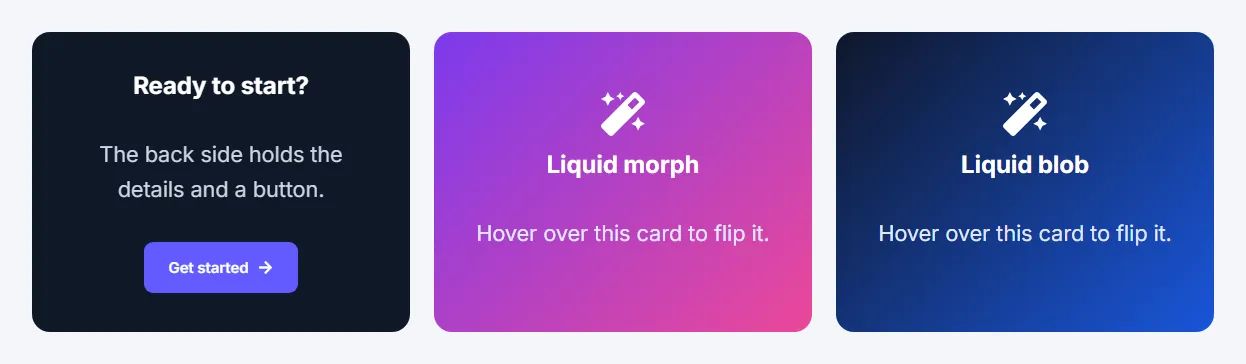
The Elementor flip box widget is a two-sided card. The front shows an icon, a title and text; the back shows more detail and a button. It turns over on hover or focus, or on click, tap and keyboard.
- Widget name MoxKit Flip Box
- Panel category MoxKit Addons
- Settings 51+
- Requires Elementor 3.25+ (free)
- Price Free
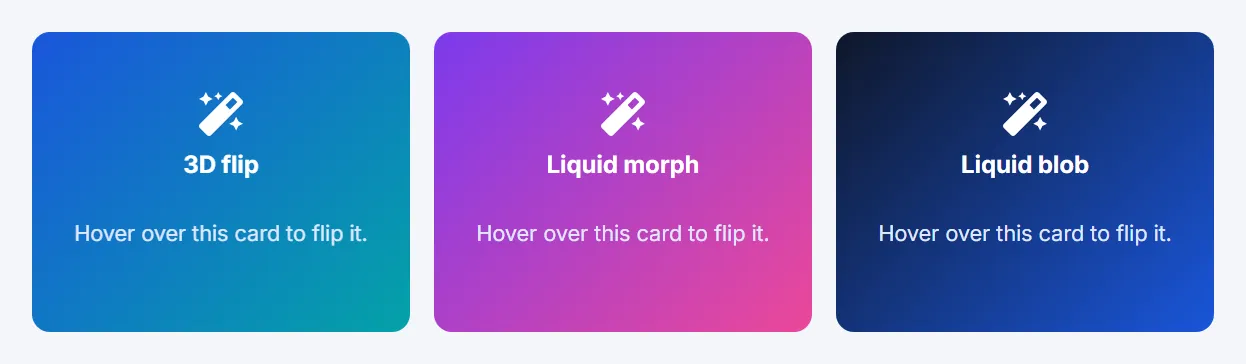
Table of contents
What is the Elementor flip box widget?
Beyond the classic 3D flip there are six effects: an elastic jelly flip, a liquid morph (ripple, melt, wave or swirl), a liquid blob that grows from the pointer, a paint drip, a rising tide and a frosted dissolve.
Like every MoxKit widget, the Flip Box has Content and Style tabs with responsive settings, typography, colors and box styling, and it keeps Elementor's Advanced tab. You can switch it off under MoxKit > Widgets if you do not use it; a disabled widget loads no files.
Key features
- Front: icon, title, text. Back: title, text, button with icon.
- Effects: 3D, jelly, liquid, blob, drip, tide, frost.
- Flip direction (right, left, up, down) and trigger (hover or click).
- Liquid style, distortion intensity, detail and duration.
- Front and back backgrounds with overlay (image, gradient, opacity, blend mode, CSS filters).
- Card radius, alignment, padding, border and shadow; button styling.
How to add the Elementor flip box widget
Follow these steps to add the widget to a page. You need MoxKit Addons for Elementor installed and Elementor active.
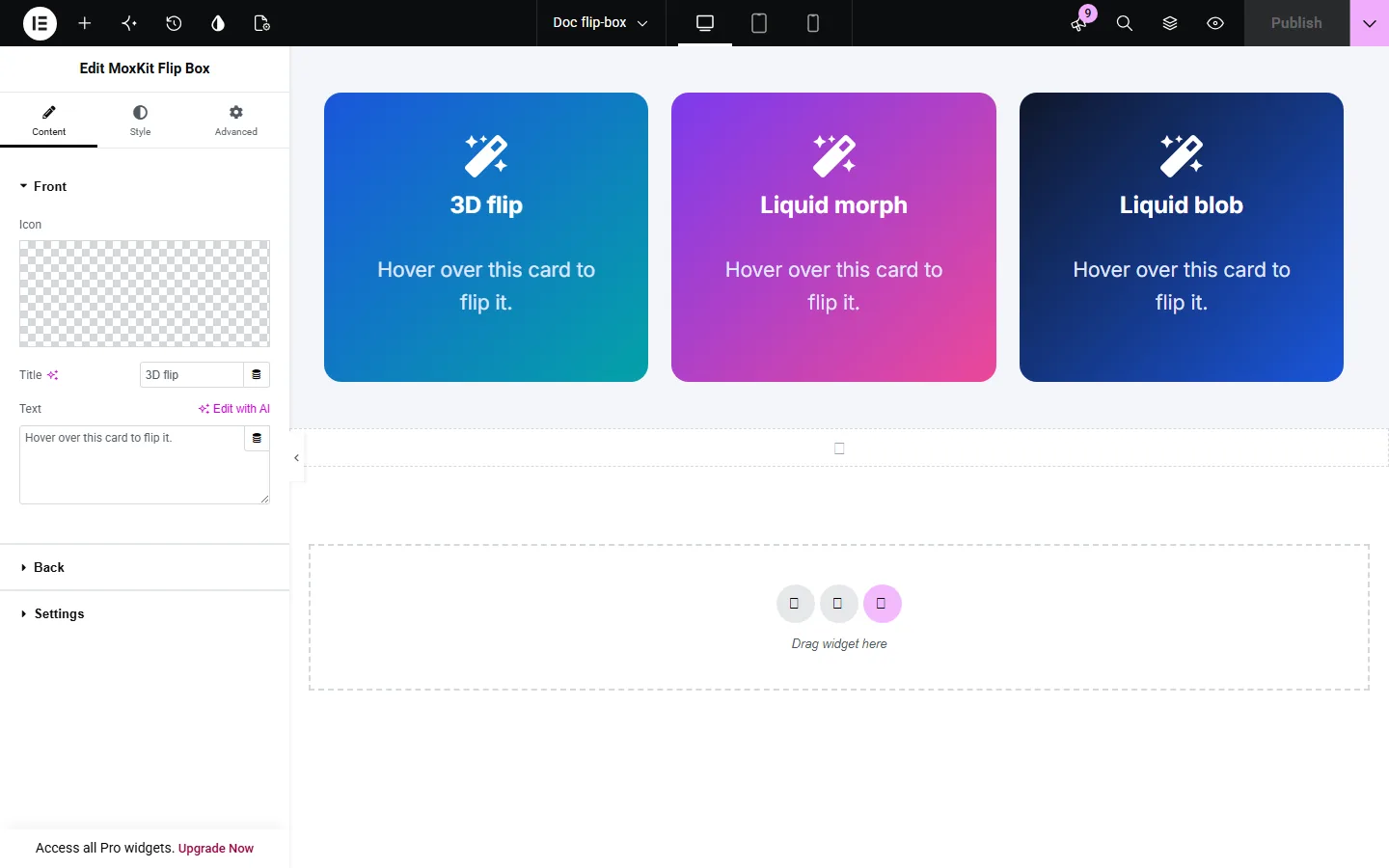
- Open the page in Elementor (Pages > Edit with Elementor).
- In the widget panel, search for "Flip Box" or scroll to the MoxKit Addons category.
- Drag the Flip Box widget into a Container.
- Fill in the Front and Back content.
- Under Settings choose the effect, direction and trigger.
- Set the front and back backgrounds in the Style tab. Add an overlay on photos so the text stays readable.
- Click Update (or Publish) to save the page.
Designs and examples
These screenshots were taken from a live WordPress site running MoxKit 1.4.4 and Elementor. They show the Flip Box with the settings described in each caption.
Elementor flip box widget settings: Content tab
The Content tab holds what the widget shows and how it behaves. It has 3 sections and about 17 settings. Settings marked per device can have a different value on desktop, tablet and mobile.
Front
| Setting | Type | Options and notes |
|---|---|---|
| Icon | Icon | |
| Title | Text | |
| Text | Text area |
Back
| Setting | Type | Options and notes |
|---|---|---|
| Title | Text | |
| Text | Text area | |
| Button text | Text | |
| Link | Link | |
| Icon | Icon | |
| Icon position | Select | Before, After (default: After) |
Settings
| Setting | Type | Options and notes |
|---|---|---|
| Height per device | Slider | |
| Flip effect | Select | 3D flip, Jelly flip (elastic), Liquid morph, Liquid blob (grows from the pointer), Paint drip, Rising tide, Frosted dissolve (default: 3D flip) |
| Flip direction | Select | Right, Left, Up, Down (default: Right) |
| Flip on | Select | Hover / keyboard focus, Click / tap (Enter or Space on keyboard) (default: Hover / keyboard focus) |
| Liquid style | Select | Ripple, Melt (vertical drip), Wave (horizontal bands), Swirl (whirlpool) (default: Ripple) |
| Distortion intensity | Slider | |
| Detail | Slider | Small numbers give broad, slow waves; large numbers give fine ripples, more drips, or more waves. |
| Duration (ms) | Slider |
Elementor flip box widget settings: Style tab
The Style tab controls the look of every part of the widget: 6 sections, about 34 settings. Elementor's own Advanced tab (margin, padding, motion effects, responsive visibility, custom CSS) is available as usual.
Front
| Setting | Type | Options and notes |
|---|---|---|
| Icon color | Color | |
| Icon size per device | Slider | |
| Title color | Color | |
| Text color | Color | |
| Typography | Group | All the usual Elementor typography settings. |
| Title spacing per device | Slider | |
| Typography | Group | All the usual Elementor typography settings. |
| Icon spacing per device | Slider |
Back
| Setting | Type | Options and notes |
|---|---|---|
| Title color | Color | |
| Text color | Color | |
| Typography | Group | All the usual Elementor typography settings. |
| Title spacing per device | Slider | |
| Typography | Group | All the usual Elementor typography settings. |
| Text to button spacing per device | Slider |
Front Background
| Setting | Type | Options and notes |
|---|---|---|
| Background | ||
| Background | Group | All the usual Elementor background settings. |
| Background Overlay | ||
Back Background
| Setting | Type | Options and notes |
|---|---|---|
| Background | ||
| Background | Group | All the usual Elementor background settings. |
| Background Overlay | ||
Card
| Setting | Type | Options and notes |
|---|---|---|
| Corner radius per device | Slider | |
| Content alignment per device | Choice | Left, Center, Right |
| Vertical position per device | Choice | Top, Middle, Bottom |
| Padding per device | Spacing | |
| Border | Group | All the usual Elementor border settings. |
| Box shadow | Group | All the usual Elementor box shadow settings. |
Button
| Setting | Type | Options and notes |
|---|---|---|
| Typography | Group | All the usual Elementor typography settings. |
| Text | Color | |
| Background | Color | |
| Border color | Color | |
| Text (hover) | Color | |
| Background (hover) | Color | |
| Border color (hover) | Color | |
| Icon spacing per device | Slider | |
| Icon size per device | Slider | |
| Width per device | Slider | |
| Padding per device | Spacing | |
| Border radius per device | Spacing |
Tips and best practices
- Use "Flip on click" on touch-first pages.
- Keep the front text short; the back is for details.
Flip Box FAQ
Does it work on phones?
Yes. On touch screens the card flips on tap.
Can keyboard users flip the card?
Yes. It flips on focus (hover trigger) or with Enter/Space (click trigger).
Summary
The Elementor flip box widget in MoxKit is free, works with the free version of Elementor and loads its files only on pages that use it. 3D or jelly flip, liquid morph, liquid blob, paint drip, rising tide or frosted dissolve. Install MoxKit Addons for Elementor from WordPress.org, drag the Flip Box widget onto a page and start with the settings above.