
Elementor Vertical Accordion
Updated · MoxKit 1.4.4 · Download free on WordPress.org
The Elementor vertical accordion places panels side by side. One panel is open and wide; the others are slim strips with vertical titles. Clicking or hovering a strip expands it. Every panel holds a real Elementor Container, so you can put any widgets inside.
- Widget name MoxKit Vertical Accordion
- Panel category MoxKit Addons
- Settings 64+
- Requires Elementor 3.25+ (free)
- Price Free
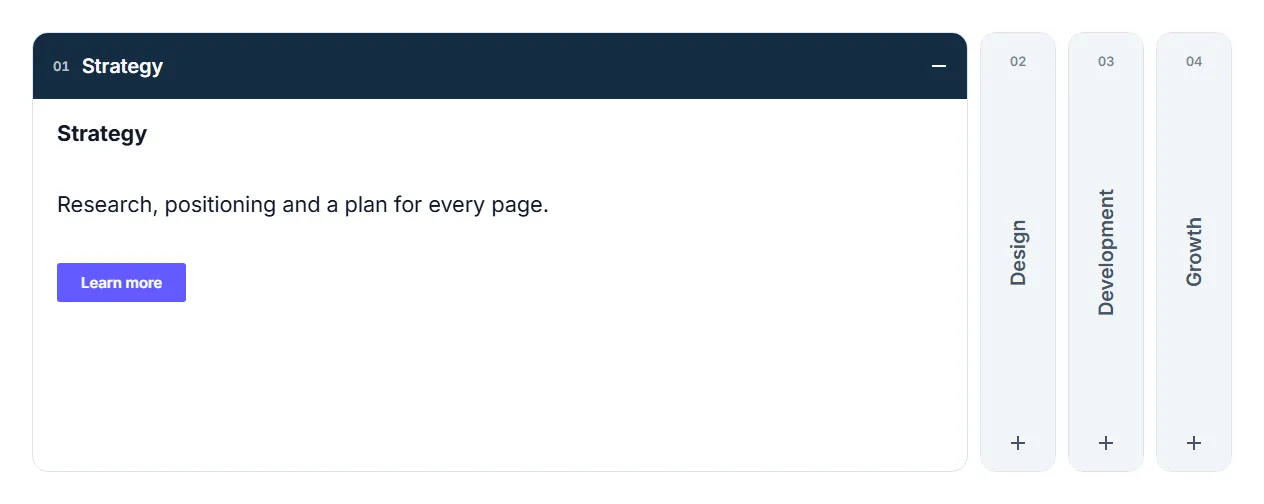
Table of contents
What is the Elementor vertical accordion?
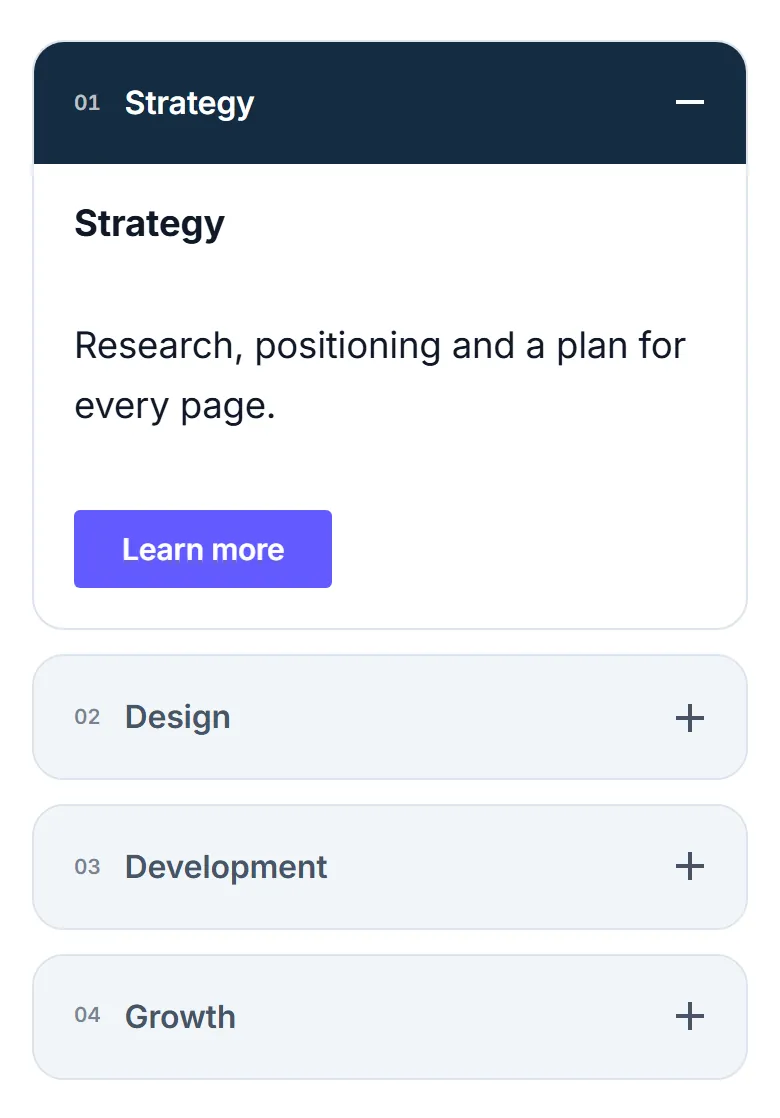
On tablets and phones the panels stack automatically with horizontal, touch-friendly headers and natural content height.
Like every MoxKit widget, the Vertical Accordion has Content and Style tabs with responsive settings, typography, colors and box styling, and it keeps Elementor's Advanced tab. You can switch it off under MoxKit > Widgets if you do not use it; a disabled widget loads no files.
Key features
- Five designs: Classic title bar, Strip tabs, Image reveal, Numbered spine and Color block.
- Editable nested Containers per panel.
- Open on click or hover; single or multiple open panels; initial panel.
- Vertical title direction and position, panel numbers (inline, chip, large ghost numeral) in 01, 1, I or A format with prefix/suffix.
- Panel and content animations (rise, fade, drop, slide, zoom, blur) with duration, easing and delay.
- Per-panel image, color and title color; muted closed panels and a shade over images.
- Stacks below the tablet or mobile breakpoint; keyboard navigation and reduced motion support.
How to add the Elementor vertical accordion
Follow these steps to add the widget to a page. You need MoxKit Addons for Elementor installed and Elementor active.
- Open the page in Elementor (Pages > Edit with Elementor).
- In the widget panel, search for "Vertical Accordion" or scroll to the MoxKit Addons category.
- Drag the Vertical Accordion widget into a Container.
- Pick the Design and the trigger (click or hover).
- Rename the panels in the Panels list; add images or colors per panel.
- Click inside a panel on the canvas and drop widgets into its Container.
- Under Mobile choose when panels stack.
- Click Update (or Publish) to save the page.
Designs and examples
These screenshots were taken from a live WordPress site running MoxKit 1.4.4 and Elementor. They show the Vertical Accordion with the settings described in each caption.

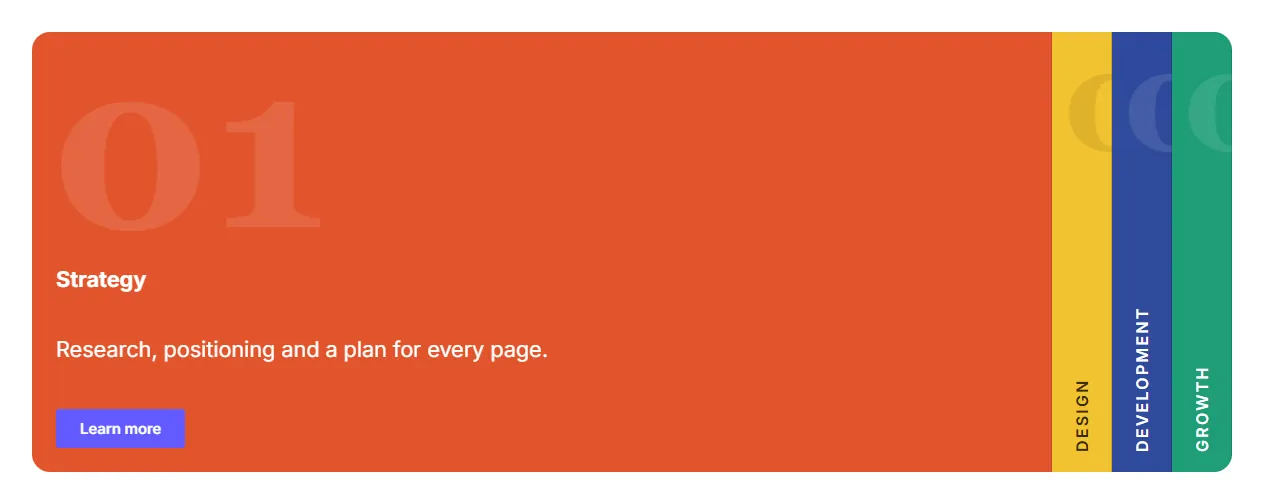
Elementor vertical accordion settings: Content tab
The Content tab holds what the widget shows and how it behaves. It has 5 sections and about 25 settings. Settings marked per device can have a different value on desktop, tablet and mobile.
Panels
| Setting | Type | Options and notes |
|---|---|---|
| Panels | Nested-Elements-Repeater | |
| Desktop layout | Select | Expanding panels / vertical titles, Stacked accordion (default: Expanding panels / vertical titles) |
| Allow multiple open panels | Toggle | On / Off |
| Initially open panel (0 = all closed) | Number | Expanding panels work like tabs on desktop: one stays open and choosing another replaces it. With none open, the panels share the width. |
| Accessible label | Text | Name read by screen readers for the whole group. Leave empty for none. |
Design
| Setting | Type | Options and notes |
|---|---|---|
| Design | Select | A starting look. Every option below and in the Style tab can still be changed. Classic (title bar), Strip tabs, Image reveal, Numbered spine, Color block (default: Classic (title bar)) |
| Open on | Select | Click, Hover (click on touch screens) (default: Click) |
| Title in the open panel | Select | Default for the design, Title bar on top, Hidden (content fills the panel) |
| Title in closed panels | Select | Default for the design, Show, Hide |
| Vertical title reads | Select | Default for the design, Bottom to top, Top to bottom |
| Vertical title position | Select | Default for the design, Top, Middle, Bottom |
| Panel number | Select | Default for the design, Beside the title, Chip, Large background numeral, None |
| Number format | Select | Default for the design, 01, 02, 03, 1, 2, 3, I, II, III, A, B, C |
| Text before the number | Text | |
| Text after the number | Text | |
| Open/closed indicator | Select | Default for the design, Show, Hide |
Animation
| Setting | Type | Options and notes |
|---|---|---|
| Panel duration (ms) | Slider | |
| Easing | Select | Smooth, Fast start, soft landing, Slow start and end, Spring (slight overshoot), Ease, Linear |
| Content entrance | Select | Fade + rise, Fade, Fade + drop, Fade + slide in, Fade + zoom, Blur in, None (default: Fade + rise) |
| Content duration (ms) | Slider | |
| Content delay (ms) | Slider | Waits until the panel has some width before the content appears. |
Title icons
| Setting | Type | Options and notes |
|---|---|---|
| Closed panel icon | Icon | Leave empty to use the built-in plus indicator. |
| Open panel icon (open) | Icon | Leave empty to use the built-in minus indicator. |
Mobile
| Setting | Type | Options and notes |
|---|---|---|
| Stack panels below | Select | Uses the breakpoint values from Elementor Site Settings. Titles become horizontal and panel content uses its natural height. Tablet breakpoint, Mobile breakpoint (default: Tablet breakpoint) |
| Initial panel on mobile (open) | Select | Same as desktop, First panel, All closed (default: Same as desktop) |
Elementor vertical accordion settings: Style tab
The Style tab controls the look of every part of the widget: 6 sections, about 39 settings. Elementor's own Advanced tab (margin, padding, motion effects, responsive visibility, custom CSS) is available as usual.
Panel box
| Setting | Type | Options and notes |
|---|---|---|
| Desktop panel height per device | Slider | |
| Closed panel width per device | Slider | |
| Panel gap per device | Slider | |
| Background | Group | All the usual Elementor background settings. |
| Border | Group | All the usual Elementor border settings. |
| Box shadow | Group | All the usual Elementor box shadow settings. |
| Border radius per device | Slider | |
| Border color on hover (hover) | Color | |
| Border color when open (open) | Color | |
| Group corner radius per device | Slider | Rounds the whole row as one shape. Use it with a gap of 0. |
| Divider between panels | Slider | |
| Divider color | Color |
Closed panels and overlay
| Setting | Type | Options and notes |
|---|---|---|
| Closed panel grayscale | Slider | Mutes closed panels; hovering one brings back part of its color. |
| Closed panel brightness | Slider | |
| Bottom shade color | Color | A gradient rising from the bottom of the open panel, to keep text readable over an image. |
| Bottom shade height | Slider |
Title
| Setting | Type | Options and notes |
|---|---|---|
| Typography | Group | All the usual Elementor typography settings. |
| Padding per device | Spacing | |
| Text color | Color | |
| Background | Color | |
| Text color (hover) | Color | |
| Background (hover) | Color | |
| Text color (open) | Color | |
| Background (open) | Color |
Panel number
| Setting | Type | Options and notes |
|---|---|---|
| Typography | Group | All the usual Elementor typography settings. |
| Color | Color | |
| Color when open (open) | Color | |
| Opacity | Slider | |
| Horizontal offset per device | Slider | |
| Vertical offset per device | Slider | |
| Chip | ||
| Chip background | Color | |
| Chip padding per device | Spacing | |
| Chip radius | Slider | |
| Border | Group | All the usual Elementor border settings. |
| Large background numeral | ||
| Background numeral size per device | Slider | |
| Background numeral size when open (open) per device | Slider | |
Title icons
| Setting | Type | Options and notes |
|---|---|---|
| Icon size per device | Slider |
Content Container
| Setting | Type | Options and notes |
|---|---|---|
| Padding per device | Spacing | |
| Content position in the panel | Select | Default for the design, Top, Middle, Bottom |
Tips and best practices
- Three to five panels fit best on desktop.
- Use the Image reveal design for services or destinations with strong photos.
Vertical Accordion FAQ
Can I put any widget inside a panel?
Yes. Each panel is a regular Elementor Container.
What happens on phones?
Panels stack vertically with horizontal headers below the breakpoint you choose.
Does it need the Nested Elements feature?
Yes. It uses Elementor's nested elements, which are active by default in current Elementor versions.
Summary
The Elementor vertical accordion in MoxKit is free, works with the free version of Elementor and loads its files only on pages that use it. Vertical titles, five designs, editable nested Containers and automatic mobile stacking. Install MoxKit Addons for Elementor from WordPress.org, drag the Vertical Accordion widget onto a page and start with the settings above.