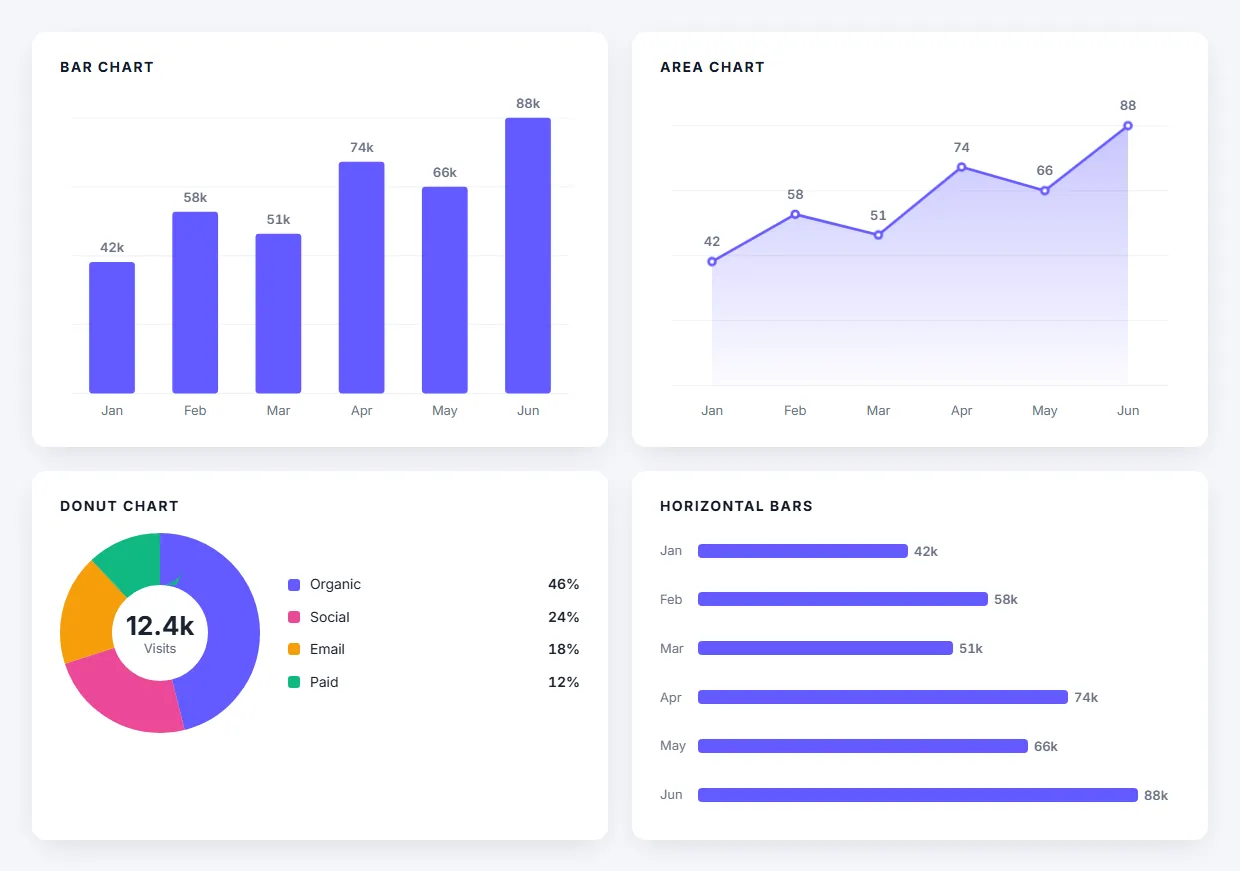
The Elementor chart widget draws bar, line, area and donut charts from data you type in the editor. Charts are drawn as inline SVG with HTML labels, so they load fast, stay sharp on every screen and use your Site Settings fonts. No external chart library is loaded.
Widget name MoxKit Chart
Panel category MoxKit Addons
Settings 73+
Requires Elementor 3.25+ (free)
Price Free
Four chart types drawn as inline SVG: bar, area, donut and horizontal bars.Table of contents
Bars can be vertical or horizontal, values can have a prefix and suffix (such as $ or %), and every chart has an entrance animation that plays when it scrolls into view.
Like every MoxKit widget, the Chart has Content and Style tabs with responsive settings, typography, colors and box styling, and it keeps Elementor's Advanced tab. You can switch it off under MoxKit > Widgets if you do not use it; a disabled widget loads no files.
Key features
Chart types: bar (vertical or horizontal), line, area and donut.
Color modes: single, per item or gradient, with per-item overrides that accept global colors.
Value prefix/suffix and positions: above, inside, above or below the label, or beside it.
Labels wrap or are truncated; grid lines, legend and donut center text (total or custom).
Bar thickness, rounded corners and a track color behind each bar.
Smooth lines, six point styles and vertical, horizontal or blended area fills.
Entrance animations: grow, bounce, elastic, fade, slide, zoom, drop for bars; draw, rise, fade for lines; sweep, spin, fade for donuts.
Open the page in Elementor (Pages > Edit with Elementor).
In the widget panel, search for "Chart" or scroll to the MoxKit Addons category.
Drag the Chart widget into a Container.
Choose the Chart type (and the bar direction for bar charts).
Fill the Data list with a label, a value and an optional color for each item.
Under Options add a value prefix or suffix and choose which parts to show.
Pick an entrance animation, then style colors, bars, lines and labels in the Style tab.
Click Update (or Publish) to save the page.
Elementor chart widget settings: Content tab
The Content tab holds what the widget shows and how it behaves. It has 4 sections and about 25 settings. Settings marked per device can have a different value on desktop, tablet and mobile.
Shown after every value, e.g. a unit such as %, kg, or k.
Show labels
Toggle
On / Off (default: On)
Show grid lines
Toggle
On / Off (default: On)
Show legend
Toggle
On / Off (default: On)
Show text in center
Toggle
On / Off (default: On)
Chart height
Slider
Values & Labels Placement
Setting
Type
Options and notes
Label & value beside each bar
Select
Each bar moves to one side of its slot to make room. Lower the bar thickness (Style > Bars) for more space. No (use the positions below), Right of the bar, Left of the bar (default: No (use the positions below))
Text position
Select
Across, at the bottom of the bar (label above value), Across, next to the top of the bar, Up along the bar (default: Across, at the bottom of the bar (label above value))
Value position
Select
Above the bar / point, Inside the bar (below the point), Above the label, Below the label, Left of the label, Right of the label (default: Above the bar / point)
Long labels
Select
Each label stays inside its own column; set the gap to its neighbours under Style > Values & Labels. Wrap onto more lines, Cut off with … (default: Wrap onto more lines)
Label position
Choice
Left of the bar, Above the bar, Right of the bar (default: Left of the bar)
Center shows
Select
Total of all values, Custom text (default: Total of all values)
Center text
Text
Center caption
Text
Caption position
Select
Below the value, Above the value (default: Below the value)
Entrance Animation
Setting
Type
Options and notes
Bar animation
Select
None, Grow, Grow with bounce, Elastic, Fade in, Slide in, Zoom in, Drop in (default: Grow)
Line animation
Select
None, Draw the line, Rise from the baseline, Fade in (default: Draw the line)
Donut animation
Select
None, Sweep segments in order, Spin in, Fade in (default: Sweep segments in order)
One item after another
Toggle
On / Off (default: On)
Duration (ms)
Slider
Elementor chart widget settings: Style tab
The Style tab controls the look of every part of the widget: 8 sections, about 48 settings. Elementor's own Advanced tab (margin, padding, motion effects, responsive visibility, custom CSS) is available as usual.
Colors
Setting
Type
Options and notes
Color mode
Select
A color override on a data item always wins. On lines and areas, per-item colors blend into a gradient. Single color, Per item (overrides, then palette), Two-color gradient (default: Single color)
Series color
Color
Gradient end color
Color
Bar gradient direction
Select
Vertical (top to bottom), Horizontal (left to right) (default: Vertical (top to bottom))
Grid color
Color
Bars
Setting
Type
Options and notes
Bar thickness (% of slot)
Slider
Bar thickness per device
Slider
Space between rows per device
Slider
Space between label, bar, and value per device
Slider
Label column width per device
Slider
Empty = as wide as the longest label.
Track color
Color
The rail behind each bar. Empty = no rail.
Corner radius
Slider
Rounded corners
Choice
All corners, Bar end only (default: All corners)
Other bars on hover (opacity) (hover)
Slider
Line & Points
Setting
Type
Options and notes
Line shape
Select
Straight, Smooth curve (default: Straight)
Line thickness per device
Slider
Point style
Select
Hollow circle, Filled circle, Ring with halo, Square, Diamond, None (hide points) (default: Hollow circle)
Keeps each label this far from the labels of the bars to its left and right.
Space between bar and side text per device
Slider
Space between label and value per device
Slider
Chart box
Setting
Type
Options and notes
Background
Group
All the usual Elementor background settings.
Border
Group
All the usual Elementor border settings.
Box shadow
Group
All the usual Elementor box shadow settings.
Padding per device
Spacing
Border radius per device
Spacing
Tips and best practices
Use horizontal bars when labels are long.
A donut works best with 2–6 items.
Set the chart height per device so it stays readable on phones.
Chart FAQ
Does the chart load an external library?
No. Charts are drawn as inline SVG by MoxKit itself.
Can I use my global colors?
Yes. Per-item colors accept Elementor global colors.
Can the donut show text in the middle?
Yes. Donut Center shows the total or custom text with a caption, with its own typography and background.
Summary
The Elementor chart widget in MoxKit is free, works with the free version of Elementor and loads its files only on pages that use it. Install MoxKit Addons for Elementor from WordPress.org, drag the Chart widget onto a page and start with the settings above.