
Elementor Animated Heading (Custom Heading Widget)
Updated · MoxKit 1.4.4 · Download free on WordPress.org
Custom Heading builds an Elementor animated heading out of parts. Each part is a piece of text, an image or a line break, and each text part has its own font, fill and marker. That lets you color one word with a gradient, show a photo through another, outline a third and underline the key phrase with a brush stroke that draws in.
- Widget name MoxKit Custom Heading
- Panel category MoxKit Addons
- Settings 33+
- Requires Elementor 3.25+ (free)
- Price Free

Table of contents
What is the Elementor animated heading?
The whole heading can animate as one block, or part by part, word by word, letter by letter or as a typewriter, on scroll, on every scroll into view, on page load or on hover. Looping effects (float, pulse, wiggle, wave, flowing fill, shine, spin) keep important words alive.
Like every MoxKit widget, the Custom Heading has Content and Style tabs with responsive settings, typography, colors and box styling, and it keeps Elementor's Advanced tab. You can switch it off under MoxKit > Widgets if you do not use it; a disabled widget loads no files.
Key features
- Parts: text, inline image (with alt text, height, width and radius) or line break; join parts without a space.
- Per-part typography and fill: solid color, gradient (two colors and angle), image text mask, or outline with stroke width and color.
- Markers: highlight, underline, bar and brush (paint, dry, rough, swash, chalk, bristle) with color, height, offset, radius, extension and draw-in direction.
- 13 entrance effects including fade, blur, zoom, flip, slide, rotate, bounce, drop, reveal and typewriter.
- Split into the whole heading, parts, words or letters with a delay between pieces.
- Triggers: on scroll into view, every time it enters, on page load or on hover.
- Looping effects with their own duration; per-part animation overrides.
- Semantic HTML tag (H1–H6, div, p, span), link and alignment.
How to add the Elementor animated heading
Follow these steps to add the widget to a page. You need MoxKit Addons for Elementor installed and Elementor active.
- Open the page in Elementor (Pages > Edit with Elementor).
- In the widget panel, search for "Custom Heading" or scroll to the MoxKit Addons category.
- Drag the Custom Heading widget into a Container.
- Under Heading > Parts, edit the default parts or add new ones. Each part is one word or phrase.
- Open a part and set its Fill (gradient, image, outline) and an optional Marker.
- Choose the HTML tag. Use H1 once per page for the main title.
- Under Animation, pick an entrance, how to split it (parts, words or letters) and when it plays.
- Click Update (or Publish) to save the page.
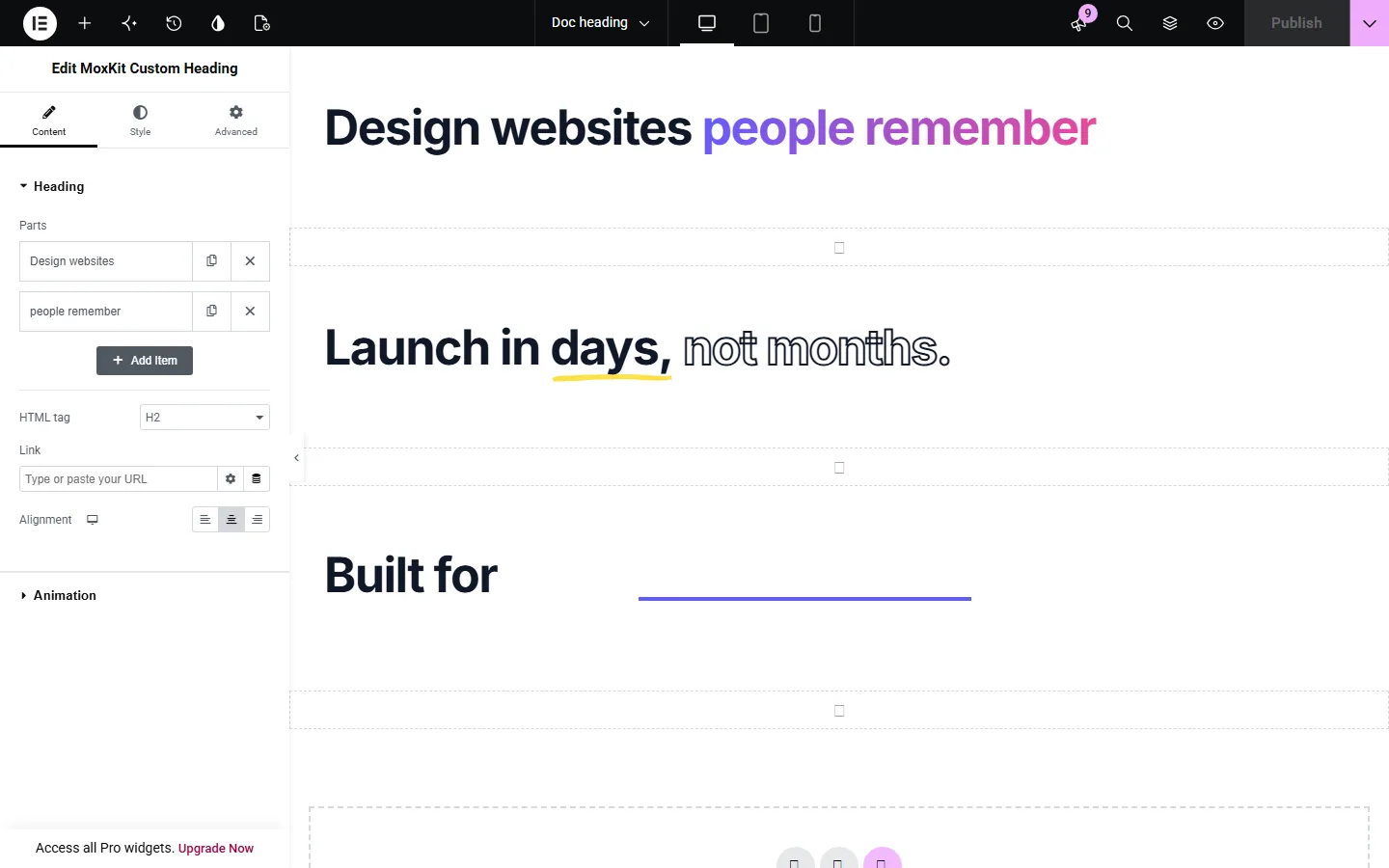
Designs and examples
These screenshots were taken from a live WordPress site running MoxKit 1.4.4 and Elementor. They show the Custom Heading with the settings described in each caption.


Elementor animated heading settings: Content tab
The Content tab holds what the widget shows and how it behaves. It has 2 sections and about 11 settings. Settings marked per device can have a different value on desktop, tablet and mobile.
Heading
| Setting | Type | Options and notes |
|---|---|---|
| Parts | List | Each item: Part, Text, Image, Alternative text, Attach to the previous part (no space), Fill, Color, Gradient start, Gradient end, Gradient angle, Image inside the letters, Image size, Image position, Outline thickness, Outline color, Marker, Brush shape, Marker color, Marker height, Distance from the bottom, Marker corner radius, Extra width on each side, Marker animation, Marker duration (ms), Marker delay (ms), Image height, Image width, Image corner radius, Entrance, Animate, Looping effect, Extra delay (ms) |
| HTML tag | Select | H1, H2, H3, H4, H5, H6, div, p, span (default: H2) |
| Link | Link | |
| Alignment per device | Choice | Left, Center, Right |
Animation
| Setting | Type | Options and notes |
|---|---|---|
| Entrance | Select | None, Fade up, Fade down, Blur in, Zoom in, Flip up, Slide from right, Slide from left, Rotate in, Bounce in, Drop in, Reveal (slide up from a mask), Typewriter (default: Fade up) |
| Animate | Select | The whole heading at once, Part by part, Word by word, Letter by letter (default: Word by word) |
| Delay between pieces (ms) | Slider | |
| Duration (ms) | Slider | |
| Play | Select | When it scrolls into view (once), Every time it scrolls into view, As soon as the page loads, Again on every hover (default: When it scrolls into view (once)) |
| Looping effect | Select | Plays continuously after the entrance. "Moving gradient / image" needs a gradient or image fill. None, Float, Pulse, Wiggle, Wave (letters), Moving gradient / image, Light sweep, Spin (images) (default: None) |
| Loop duration (s) | Slider |
Elementor animated heading settings: Style tab
The Style tab controls the look of every part of the widget: 3 sections, about 22 settings. Elementor's own Advanced tab (margin, padding, motion effects, responsive visibility, custom CSS) is available as usual.
Heading
| Setting | Type | Options and notes |
|---|---|---|
| Typography | Group | All the usual Elementor typography settings. |
| Fill | Select | Solid color, Gradient, Image (text mask), Outline (default: Solid color) |
| Color | Color | |
| Gradient start | Color | |
| Gradient end | Color | |
| Gradient angle | Slider | |
| Image inside the letters | Image | |
| Image size | Select | Cover, Contain, Original (default: Cover) |
| Image position | Select | Center, Top, Bottom, Left, Right (default: Center) |
| Outline thickness | Slider | |
| Outline color | Color | |
| Text shadow | Group | All the usual Elementor text shadow settings. |
| Bottom spacing per device | Slider |
Images in the text
| Setting | Type | Options and notes |
|---|---|---|
| Height per device | Slider | |
| Corner radius per device | Slider | |
| Space around images per device | Slider | |
| Vertical position | Select | Middle of the line, On the baseline, Top of the text, Bottom of the text (default: Middle of the line) |
Box
| Setting | Type | Options and notes |
|---|---|---|
| Background | Group | All the usual Elementor background settings. |
| Border | Group | All the usual Elementor border settings. |
| Box shadow | Group | All the usual Elementor box shadow settings. |
| Padding per device | Spacing | |
| Border radius per device | Spacing |
Tips and best practices
- Search engines read the heading as normal text, so the gradient and image fills do not hurt SEO.
- Highlight just one or two words; it guides the eye better than styling everything.
- Images inside text need alt text; leave it empty only when the image is decorative.
Custom Heading FAQ
Is the heading text readable by Google?
Yes. The heading is real HTML text in the tag you choose (H1–H6), so it is indexed like any other heading.
Can I animate one word only?
Yes. Each part has its own animation settings that override the heading's animation.
What happened to the Eyebrow and Description fields?
They were removed in 1.3.0 when the heading was rebuilt. Headings that already used them keep working; use separate widgets for new ones.
Summary
The Elementor animated heading in MoxKit is free, works with the free version of Elementor and loads its files only on pages that use it. Gradient and image text, outline, brush and highlight markers, images in the text and 13 entrance effects. Install MoxKit Addons for Elementor from WordPress.org, drag the Custom Heading widget onto a page and start with the settings above.