
Elementor Youtube Video Widget
Updated · MoxKit 1.4.4 · Download free on WordPress.org
The MoxKit Elementor YouTube video widget embeds YouTube, Vimeo or your own video files. With Load only after click on, the player is kept in an inert HTML template until the visitor presses Play, so YouTube or Vimeo receive nothing on page load. That is better for privacy and for page speed.
- Widget name MoxKit Video
- Panel category MoxKit Addons
- Settings 32+
- Requires Elementor 3.25+ (free)
- Price Free
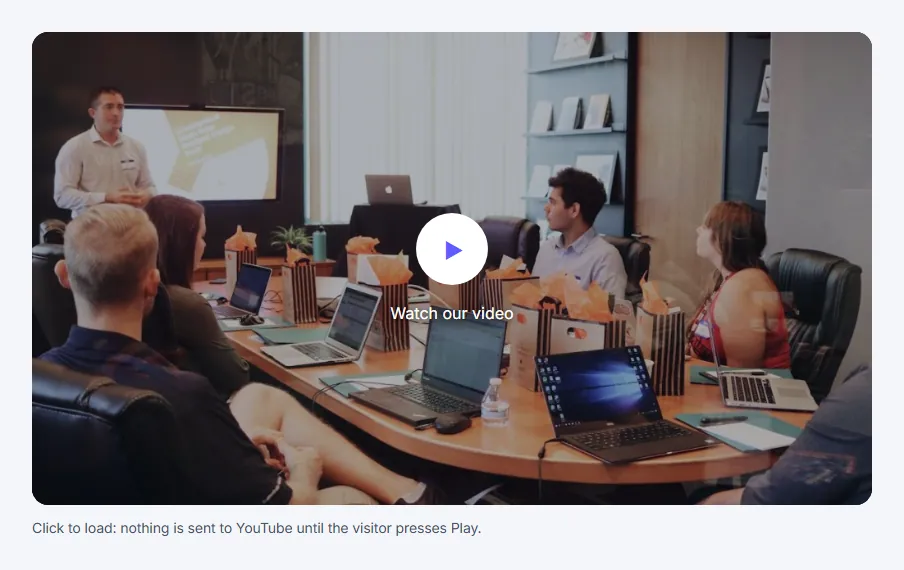
Table of contents
What is the Elementor YouTube video widget?
YouTube embeds use the privacy-enhanced youtube-nocookie.com domain and Vimeo embeds add dnt=1. Self-hosted videos support WebVTT captions.
Like every MoxKit widget, the Video has Content and Style tabs with responsive settings, typography, colors and box styling, and it keeps Elementor's Advanced tab. You can switch it off under MoxKit > Widgets if you do not use it; a disabled widget loads no files.
Key features
- Sources: YouTube, Vimeo or a self-hosted file.
- Click-to-load privacy mode with your own cover image.
- Autoplay (muted), loop, controls and start time.
- WebVTT captions with language code for self-hosted video.
- Accessible title, caption text, player box and caption styling.
How to add the Elementor YouTube video widget
Follow these steps to add the widget to a page. You need MoxKit Addons for Elementor installed and Elementor active.
- Open the page in Elementor (Pages > Edit with Elementor).
- In the widget panel, search for "Video" or scroll to the MoxKit Addons category.
- Drag the Video widget into a Container.
- Choose the Source and paste the video URL (or pick a file).
- Upload a Cover image and keep Load only after click on.
- Fill in the Accessible video title.
- Style the player box and caption in the Style tab.
- Click Update (or Publish) to save the page.
Elementor YouTube video widget settings: Content tab
The Content tab holds what the widget shows and how it behaves. It has 1 sections and about 14 settings. Settings marked per device can have a different value on desktop, tablet and mobile.
Video source
| Setting | Type | Options and notes |
|---|---|---|
| Source | Select | YouTube, Vimeo, Self hosted (default: YouTube) |
| Video URL | Text | |
| Video file | Image | |
| Cover image | Image | |
| Accessible video title | Text | |
| Caption | Text | |
| Load only after click (privacy) | Toggle | On / Off (default: On) |
| Autoplay (requires muted) | Toggle | On / Off |
| Muted | Toggle | On / Off (default: On) |
| Loop | Toggle | On / Off |
| Player controls | Toggle | On / Off (default: On) |
| Start time (seconds, YouTube) | Number | |
| WebVTT captions URL (self hosted) | Text | |
| Caption language code | Text |
Elementor YouTube video widget settings: Style tab
The Style tab controls the look of every part of the widget: 3 sections, about 18 settings. Elementor's own Advanced tab (margin, padding, motion effects, responsive visibility, custom CSS) is available as usual.
Player
| Setting | Type | Options and notes |
|---|---|---|
| Aspect ratio | Select | 16:9, 4:3, 1:1, 9:16, 21:9 (default: 16:9) |
| Video fit | Select | Contain, Cover (default: Contain) |
| Play icon | Color | |
| Play background | Color | |
| Play hover / focus (hover) | Color | |
| Play size per device | Slider | |
| Play radius per device | Slider | |
| Typography | Group | All the usual Elementor typography settings. |
| Play label color | Color | |
| Alignment per device | Choice | Left, Center, Right |
Caption
| Setting | Type | Options and notes |
|---|---|---|
| Typography | Group | All the usual Elementor typography settings. |
| Color | Color | |
| Bottom spacing per device | Slider |
Player box
| Setting | Type | Options and notes |
|---|---|---|
| Background | Group | All the usual Elementor background settings. |
| Border | Group | All the usual Elementor border settings. |
| Box shadow | Group | All the usual Elementor box shadow settings. |
| Padding per device | Spacing | |
| Border radius per device | Spacing |
Tips and best practices
- Upload your own cover image: it loads from your site instead of the video provider.
- Autoplay only works when the video is muted; browsers block unmuted autoplay.
Video FAQ
Does the video contact YouTube on page load?
Not with click-to-load on. The provider receives a request only when the visitor clicks Play.
Can I add subtitles?
For self-hosted videos, add a WebVTT captions URL and language code. YouTube and Vimeo use their own caption settings.
Summary
The Elementor YouTube video widget in MoxKit is free, works with the free version of Elementor and loads its files only on pages that use it. Click-to-load cover, captions and player controls. Install MoxKit Addons for Elementor from WordPress.org, drag the Video widget onto a page and start with the settings above.