
Elementor Button Hover Effects
Updated · MoxKit 1.4.4 · Download free on WordPress.org
The MoxKit Button widget gives you Elementor button hover effects that go far beyond a color change. Start from one of 12 ready-made presets, or combine a shape, a hover animation, an icon animation, an attention loop and a click effect yourself.
- Widget name MoxKit Button
- Panel category MoxKit Addons
- Settings 36+
- Requires Elementor 3.25+ (free)
- Price Free
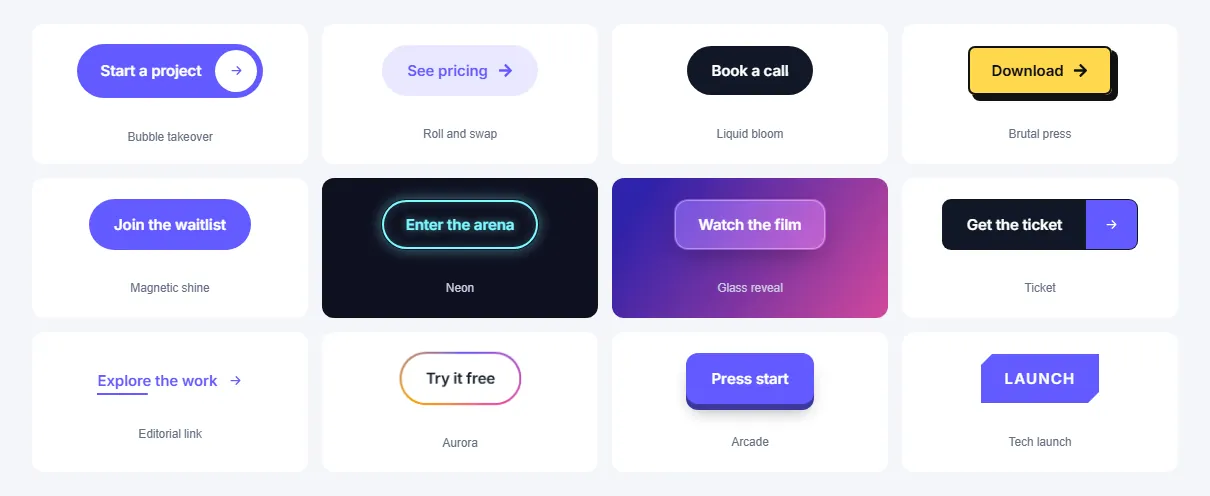
Table of contents
What is the Elementor button hover effects?
All effects are pure CSS with a tiny script for the cursor-based ones (bloom, spotlight, tilt and magnetic). Buttons remain real links, keyboard focusable and readable by screen readers.
Like every MoxKit widget, the Button has Content and Style tabs with responsive settings, typography, colors and box styling, and it keeps Elementor's Advanced tab. You can switch it off under MoxKit > Widgets if you do not use it; a disabled widget loads no files.
Key features
- 12 presets: Bubble takeover, Roll and swap, Liquid bloom, Brutal press, Magnetic shine, Neon, Glass reveal, Ticket, Editorial link, Aurora, Arcade and Tech launch.
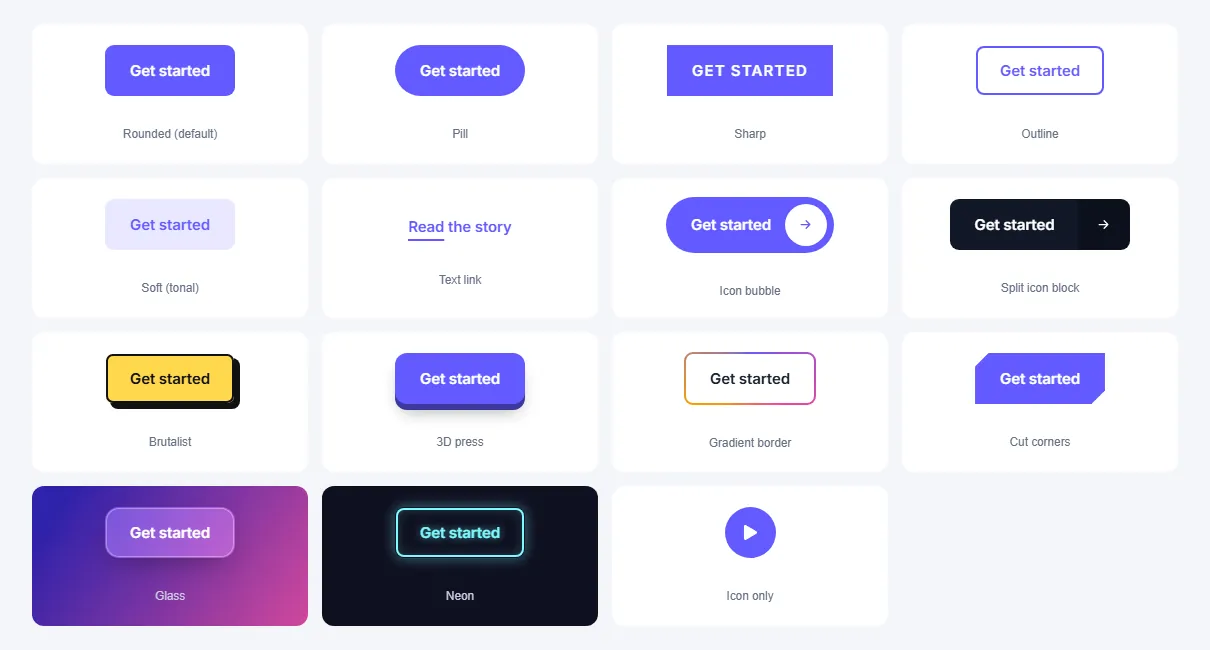
- 15 shapes: rounded, pill, sharp, outline, tonal, text link, icon bubble, split icon block, brutalist, 3D press, gradient border, cut corners, glass, neon and icon only.
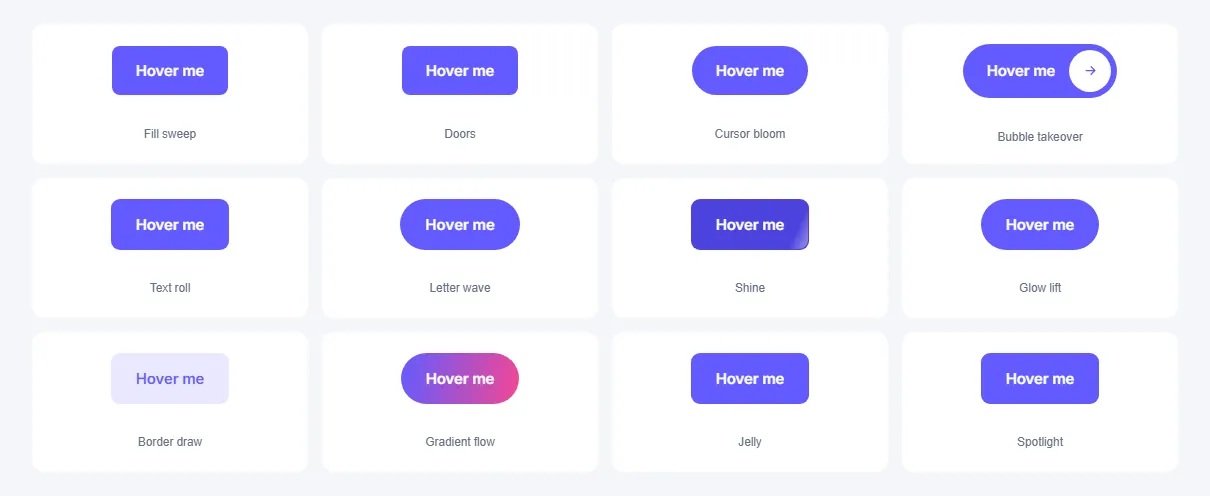
- 16 hover animations: sweep (four directions), doors, cursor bloom, takeover, text roll, letter wave, letter spread, shine, glow, border draw, gradient flow, jelly, spotlight, 3D tilt and magnetic.
- Icon animations: nudge, swap, reveal, turn and loop; icon before or after the text.
- Attention loops: pulse, shimmer, wiggle, breathe. Click feedback: ripple or press.
- Normal and hover colors, border, typography, padding, radius and icon size.
How to add the Elementor button hover effects
Follow these steps to add the widget to a page. You need MoxKit Addons for Elementor installed and Elementor active.
- Open the page in Elementor (Pages > Edit with Elementor).
- In the widget panel, search for "Button" or scroll to the MoxKit Addons category.
- Drag the Button widget into a Container.
- Type the Button text, set the Link and choose an optional icon.
- Under Design and animation, pick a Preset, or a Shape and a Hover animation.
- Add an icon animation, attention loop or click feedback if you like.
- Set the colors in Style > Button (normal and hover).
- Click Update (or Publish) to save the page.
Designs and examples
These screenshots were taken from a live WordPress site running MoxKit 1.4.4 and Elementor. They show the Button with the settings described in each caption.
Elementor button hover effects settings: Content tab
The Content tab holds what the widget shows and how it behaves. It has 2 sections and about 13 settings. Settings marked per device can have a different value on desktop, tablet and mobile.
Button content
| Setting | Type | Options and notes |
|---|---|---|
| Button text | Text | |
| Link | Link | |
| Icon | Icon | |
| Icon position | Select | Before, After (default: After) |
| Hover movement | Select | None, Lift, Grow (default: Lift) |
| Alignment per device | Choice | Left, Center, Right |
Design and animation
| Setting | Type | Options and notes |
|---|---|---|
| Preset | Select | A preset sets the shape and every animation at once. Colors, size and spacing still come from the Style tab. Custom (choose below), Bubble takeover, Roll and swap, Liquid bloom, Brutal press, Magnetic shine, Neon, Glass reveal, Ticket, Editorial link, Aurora, Arcade, Tech launch |
| Shape | Select | Outline, Soft, Text link, Neon and Glass take their color from the Background color. Rounded (default), Pill, Sharp, uppercase, Outline, Soft (tonal), Text link, Icon bubble, Split icon block, Brutalist, 3D press, Gradient border, Cut corners, Glass, Neon, Icon only (round) (default: Rounded (default)) |
| Hover animation (hover) | Select | Fill sweep, Doors, Cursor bloom and Bubble takeover paint the Hover background color in. None, Fill sweep, Doors, Cursor bloom, Bubble takeover (Icon bubble shape), Text roll, Letter wave, Letter spread, Shine, Glow lift, Border draw, Gradient flow, Jelly, Spotlight, 3D tilt, Magnetic (default: None) |
| Sweep direction | Select | From the left, From the right, From the bottom, From the top (default: From the left) |
| Icon animation | Select | None, Nudge, Arrow swap, Reveal on hover, Turn to diagonal, Nudge, looping (default: None) |
| Attention (looping) | Select | None, Pulse ring, Shimmer, Wiggle, Breathe (default: None) |
| Click feedback | Select | None, Ripple and press, Press (default: None) |
Elementor button hover effects settings: Style tab
The Style tab controls the look of every part of the widget: 3 sections, about 23 settings. Elementor's own Advanced tab (margin, padding, motion effects, responsive visibility, custom CSS) is available as usual.
Button
| Setting | Type | Options and notes |
|---|---|---|
| Typography | Group | All the usual Elementor typography settings. |
| Text | Color | |
| Background | Color | |
| Border color | Color | |
| Text (hover) | Color | |
| Background (hover) | Color | |
| Border color (hover) | Color | |
| Icon spacing per device | Slider | |
| Icon size per device | Slider | |
| Width per device | Slider | |
| Padding per device | Spacing | |
| Border radius per device | Spacing |
Effects
| Setting | Type | Options and notes |
|---|---|---|
| Effect color | Color | |
| Shadow and depth color | Color | |
| Gradient color 1 | Color | |
| Gradient color 2 | Color | |
| Gradient color 3 | Color | |
| Animation speed (ms) | Slider |
Container
| Setting | Type | Options and notes |
|---|---|---|
| Background | Group | All the usual Elementor background settings. |
| Border | Group | All the usual Elementor border settings. |
| Box shadow | Group | All the usual Elementor box shadow settings. |
| Padding per device | Spacing | |
| Border radius per device | Spacing |
Tips and best practices
- Use one attention loop per page at most, on the main call to action.
- The Glass shape and preset look best over photos or gradients.
- Choose a preset first, then fine-tune its colors; presets set the shape and animations for you.
Button FAQ
Do the button animations slow down the page?
No. They are CSS animations; only the cursor-based effects use a small script, loaded on pages that need it.
Can I use my own colors with a preset?
Yes. Presets set the shape and motion; colors come from Style > Button.
Are visitors who prefer less motion respected?
Yes. Looping and large motion effects are reduced for visitors who enabled reduced motion.
Summary
The Elementor button hover effects in MoxKit is free, works with the free version of Elementor and loads its files only on pages that use it. Sweep, bloom, roll, wave, shine, magnetic, plus icon and click animations. Install MoxKit Addons for Elementor from WordPress.org, drag the Button widget onto a page and start with the settings above.