
Elementor Pie Chart Widget
Updated · MoxKit 1.4.4 · Download free on WordPress.org
The Elementor pie chart widget shows a single value as an animated ring, a full pie or a half or three-quarter gauge. Display it as a percentage, or as a number out of a maximum such as 4.6 out of 5.
- Widget name MoxKit Pie Chart
- Panel category MoxKit Addons
- Settings 45+
- Requires Elementor 3.25+ (free)
- Price Free
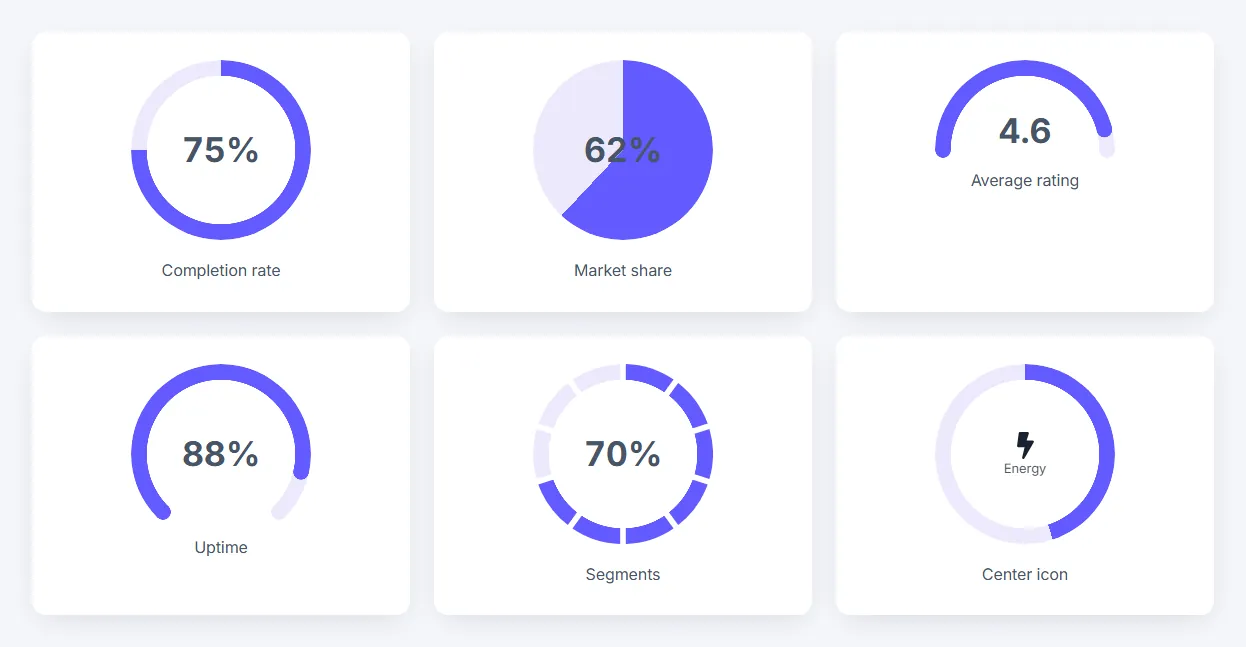
Table of contents
What is the Elementor pie chart widget?
Arcs can have rounded ends, a gradient, a glow or be split into segments with gaps. The center shows the number, an icon or a caption.
Like every MoxKit widget, the Pie Chart has Content and Style tabs with responsive settings, typography, colors and box styling, and it keeps Elementor's Advanced tab. You can switch it off under MoxKit > Widgets if you do not use it; a disabled widget loads no files.
Key features
- Shapes: ring, pie, half gauge, three-quarter gauge.
- Percentage or number out of a maximum, with decimals, prefix and suffix.
- Rounded ends, gradient arcs, glow, segments and gap.
- Start angle and direction.
- Center number, icon and caption; label and description beside or below.
- Entrance: fill or fill only, easing and duration.
How to add the Elementor pie chart widget
Follow these steps to add the widget to a page. You need MoxKit Addons for Elementor installed and Elementor active.
- Open the page in Elementor (Pages > Edit with Elementor).
- In the widget panel, search for "Pie Chart" or scroll to the MoxKit Addons category.
- Drag the Pie Chart widget into a Container.
- Choose the Value type and enter the percentage or number.
- Under Shape pick ring, pie or gauge and the arc options.
- Add a label and an optional center icon.
- Click Update (or Publish) to save the page.
Elementor pie chart widget settings: Content tab
The Content tab holds what the widget shows and how it behaves. It has 3 sections and about 24 settings. Settings marked per device can have a different value on desktop, tablet and mobile.
Pie chart
| Setting | Type | Options and notes |
|---|---|---|
| Value | Select | Percentage, Number out of a maximum (default: Percentage) |
| Percentage | Number | |
| Number | Number | |
| Maximum | Number | |
| Decimals | Number | |
| Before the number | Text | |
| After the number | Text | |
| Show the number in the center | Toggle | On / Off (default: On) |
| Center icon | Icon | |
| Center caption | Text | |
| Label | Text | |
| Description | Text area | |
| Label HTML tag | Select | H2, H3, H4, H5, H6, div, p, span (default: p) |
| Text position per device | Choice | Left, Above, Below, Right (default: Below) |
| Alignment per device | Choice | Left, Center, Right |
Shape
| Setting | Type | Options and notes |
|---|---|---|
| Shape | Select | Ring, Full pie, Half gauge, Three-quarter gauge (default: Ring) |
| Direction | Select | Clockwise, Counter-clockwise (default: Clockwise) |
| Start angle | Slider | 0 starts at the top. |
| Rounded ends | Toggle | On / Off |
| Segments | Number | Splits the ring into separate blocks. 0 keeps it solid. |
| Gap between segments | Slider |
Animation
| Setting | Type | Options and notes |
|---|---|---|
| Entrance | Select | Fill and count up, Fill, number shown at once, None (default: Fill and count up) |
| Easing | Select | Smooth stop, Linear, Slow start and end, Elastic (default: Smooth stop) |
| Duration (ms) | Number |
Elementor pie chart widget settings: Style tab
The Style tab controls the look of every part of the widget: 4 sections, about 21 settings. Elementor's own Advanced tab (margin, padding, motion effects, responsive visibility, custom CSS) is available as usual.
Chart
| Setting | Type | Options and notes |
|---|---|---|
| Size per device | Slider | |
| Ring thickness per device | Slider | |
| Fill | Select | Solid, Gradient along the arc (default: Solid) |
| Fill color | Color | |
| Gradient end color | Color | |
| Track color | Color | |
| Center background | Color | |
| Glow | Slider | |
| Space between chart and text per device | Slider |
Center
| Setting | Type | Options and notes |
|---|---|---|
| Number color | Color | |
| Typography | Group | All the usual Elementor typography settings. |
| Caption color | Color | |
| Typography | Group | All the usual Elementor typography settings. |
| Icon color | Color | |
| Icon size per device | Slider |
Label
| Setting | Type | Options and notes |
|---|---|---|
| Typography | Group | All the usual Elementor typography settings. |
| Color | Color | |
| Bottom spacing per device | Slider |
Description
| Setting | Type | Options and notes |
|---|---|---|
| Typography | Group | All the usual Elementor typography settings. |
| Color | Color | |
| Bottom spacing per device | Slider |
Tips and best practices
- Half gauges are great for ratings and scores.
- Use segments (8–12) for a modern dashboard look.
Pie Chart FAQ
Can it show a number instead of a percentage?
Yes. Set Value to Number and enter the maximum, for example 4.6 out of 5.
Can the ring have several colors?
Use the gradient arc option for a color blend.
Summary
The Elementor pie chart widget in MoxKit is free, works with the free version of Elementor and loads its files only on pages that use it. Animated ring, full pie, half or three-quarter gauge, rounded, gradient or segmented arcs and a center icon. Install MoxKit Addons for Elementor from WordPress.org, drag the Pie Chart widget onto a page and start with the settings above.