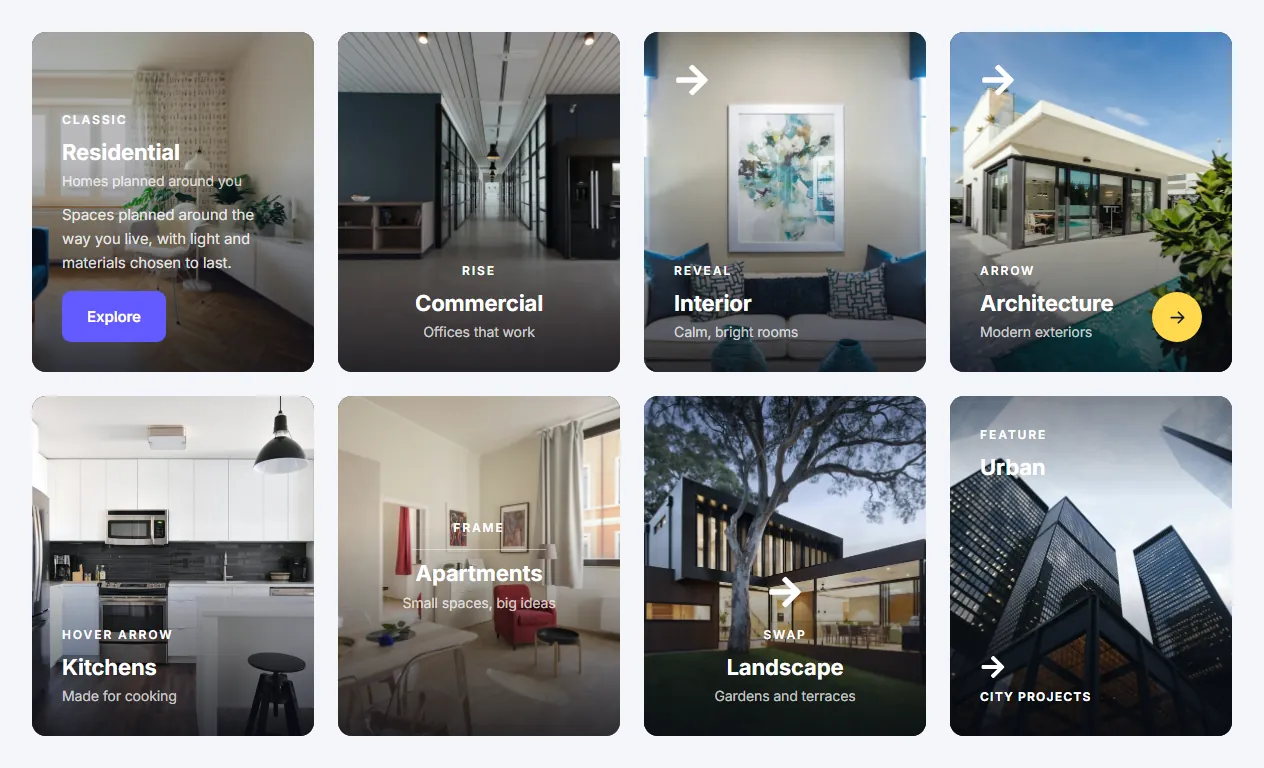
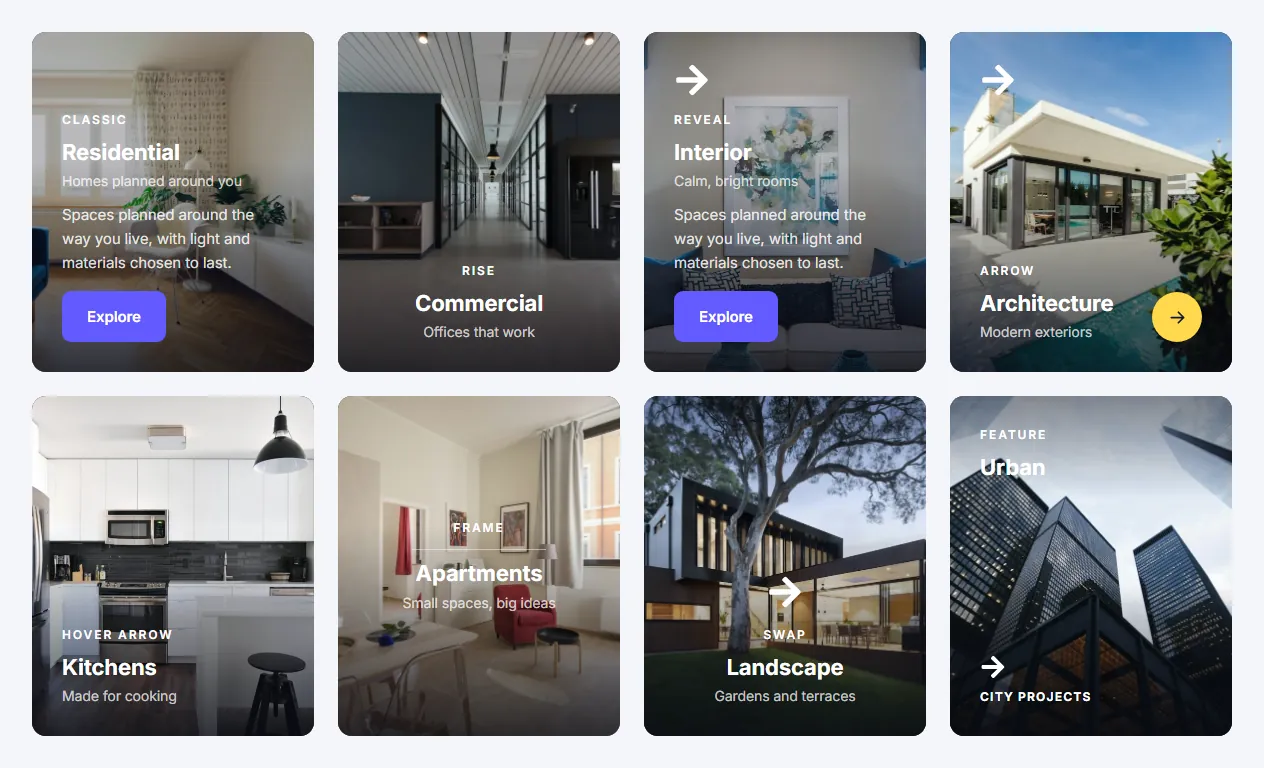
The Elementor image box widget is a picture card with text on the image and an interactive hover. It is perfect for services, portfolio categories, rooms, destinations or product collections.
Widget name MoxKit Image Box
Panel category MoxKit Addons
Settings 62+
Requires Elementor 3.25+ (free)
Price Free
All eight designs, left to right: Classic, Rise, Reveal, Arrow, Hover arrow, Frame, Swap, Feature.Table of contents
Choose one of eight designs (Classic, Rise, Reveal, Arrow, Hover arrow, Frame, Swap and Feature). The whole box is one accessible link, so visitors can click anywhere on it.
Like every MoxKit widget, the Image Box has Content and Style tabs with responsive settings, typography, colors and box styling, and it keeps Elementor's Advanced tab. You can switch it off under MoxKit > Widgets if you do not use it; a disabled widget loads no files.
Key features
Eight designs with different hover reveals.
Image, icon, badge, eyebrow, title, subtitle, hover text and button.
The whole box is one link.
Height, image zoom on hover, hover speed and lift.
Style sections for box, content padding per side, hover panel (Frame design), icon, badge, every text, button and round arrow.
Open the page in Elementor (Pages > Edit with Elementor).
In the widget panel, search for "Image Box" or scroll to the MoxKit Addons category.
Drag the Image Box widget into a Container.
Pick a Design and choose the image.
Fill in the title, subtitle and hover text; add a badge or icon if the design uses them.
Set the Link (whole box).
Adjust the height and hover zoom under Box and hover.
Click Update (or Publish) to save the page.
Designs and examples
These screenshots were taken from a live WordPress site running MoxKit 1.4.4 and Elementor. They show the Image Box with the settings described in each caption.
Hovering the Reveal design slides the details up.
Elementor image box widget settings: Content tab
The Content tab holds what the widget shows and how it behaves. It has 2 sections and about 18 settings. Settings marked per device can have a different value on desktop, tablet and mobile.
Image box
Setting
Type
Options and notes
Design
Select
Title on the image, Icon rises on hover, Details slide up, Icon and round arrow, Arrow beside the title, Framed panel, Swap on hover, Title on top (default: Details slide up)
Image
Image
Image Resolution
Select
Thumbnail - 150 x 150, Medium - 300 x 300, Medium Large - 768 x 0, Large - 1024 x 1024, 1536x1536 - 1536 x 1536, 2048x2048 - 2048 x 2048, Full, Custom (default: Large - 1024 x 1024)
Image Dimension
Size
You can crop the original image size to any custom size. You can also set a single value for height or width in order to keep the original size ratio.
Icon
Icon
Badge
Text
Eyebrow
Text
Title
Text
Subtitle
Text
Hover text
Text area
Shown on hover in most designs; always shown in Title on the image.
Button text
Text
Link (whole box)
Link
Title tag
Select
H2, H3, H4, DIV (default: H3)
Alignment per device
Choice
Left, Center, Right
Box and hover
Setting
Type
Options and notes
Height per device
Slider
Image zoom on hover
Slider
Hover speed (ms)
Slider
Lift on hover
Toggle
On / Off
Elementor image box widget settings: Style tab
The Style tab controls the look of every part of the widget: 11 sections, about 44 settings. Elementor's own Advanced tab (margin, padding, motion effects, responsive visibility, custom CSS) is available as usual.
Box
Setting
Type
Options and notes
Shade under the text
Color
Overlay on hover
Color
Border
Group
All the usual Elementor border settings.
Box shadow
Group
All the usual Elementor box shadow settings.
Border radius per device
Spacing
Content
Setting
Type
Options and notes
Padding per device
Spacing
Same padding on all sides per device
Slider
Used when Padding above is empty.
Hover panel
Setting
Type
Options and notes
Panel color
Color
Distance from the edges per device
Slider
Padding per device
Spacing
Border radius per device
Spacing
Border
Group
All the usual Elementor border settings.
Icon
Setting
Type
Options and notes
Size per device
Slider
Color
Color
Badge
Setting
Type
Options and notes
Typography
Group
All the usual Elementor typography settings.
Text color
Color
Background
Color
Eyebrow
Setting
Type
Options and notes
Typography
Group
All the usual Elementor typography settings.
Color
Color
Bottom spacing per device
Slider
Title
Setting
Type
Options and notes
Typography
Group
All the usual Elementor typography settings.
Color
Color
Bottom spacing per device
Slider
Subtitle
Setting
Type
Options and notes
Typography
Group
All the usual Elementor typography settings.
Color
Color
Bottom spacing per device
Slider
Hover text
Setting
Type
Options and notes
Typography
Group
All the usual Elementor typography settings.
Color
Color
Bottom spacing per device
Slider
Button
Setting
Type
Options and notes
Typography
Group
All the usual Elementor typography settings.
Text
Color
Background
Color
Border color
Color
Text (hover)
Color
Background (hover)
Color
Border color (hover)
Color
Icon spacing per device
Slider
Icon size per device
Slider
Width per device
Slider
Padding per device
Spacing
Border radius per device
Spacing
Round arrow
Setting
Type
Options and notes
Arrow color
Color
Circle color
Color
Circle size per device
Slider
Tips and best practices
Use images with a calm area where the text sits.
Place 3 or 4 boxes in a row Container for a category grid.
Keep the hover text to one or two lines.
Image Box FAQ
Can I click anywhere on the box?
Yes. The entire box is a single link.
Can I change the title tag for SEO?
Yes. Choose H2, H3, H4 or div under Title tag.
Summary
The Elementor image box widget in MoxKit is free, works with the free version of Elementor and loads its files only on pages that use it. 8 hover designs, text on the image, badge, icon, button, and the whole box as one link. Install MoxKit Addons for Elementor from WordPress.org, drag the Image Box widget onto a page and start with the settings above.