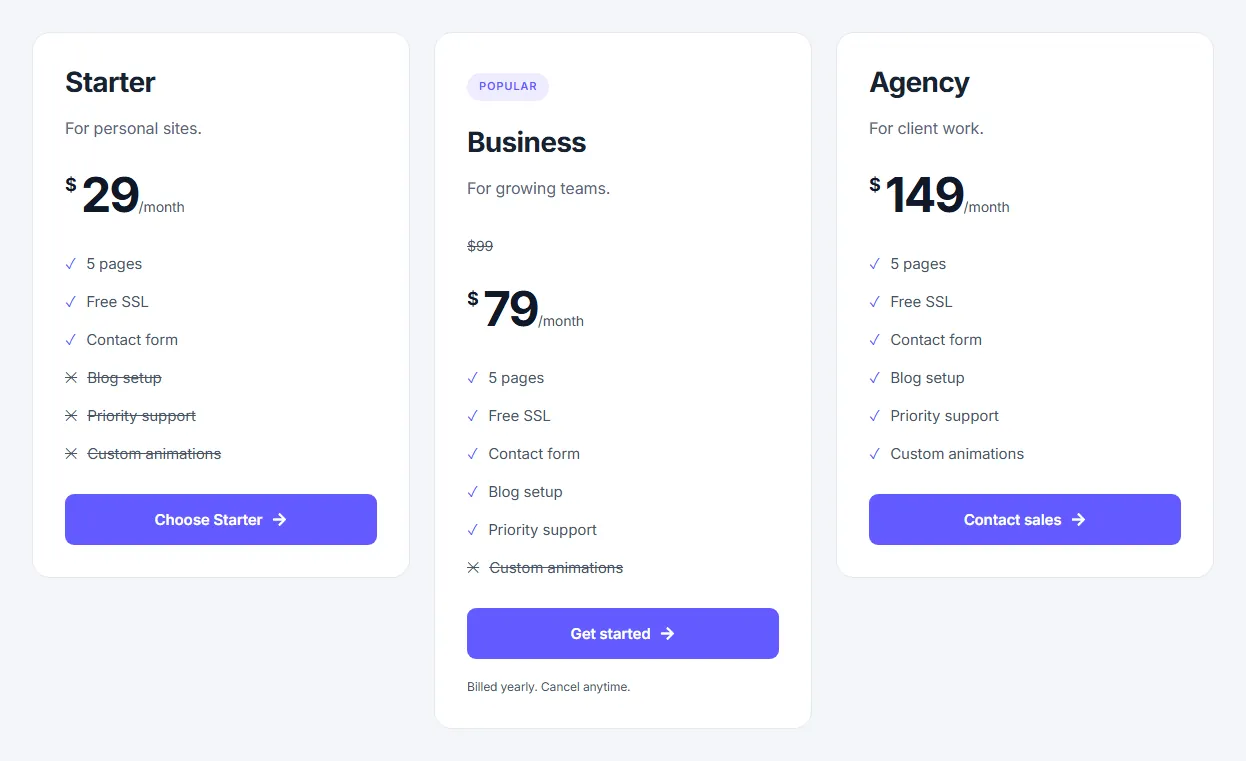
The Elementor pricing table widget presents one plan: name, description, price with currency and billing period, an optional original price, a badge, a feature list and a button.
Widget name MoxKit Pricing Table
Panel category MoxKit Addons
Settings 67+
Requires Elementor 3.25+ (free)
Price Free
Three plans with a badge, an original price, included and excluded features and a footnote.Table of contents
Place three tables in a row Container to compare plans, and highlight the recommended one with a badge.
Like every MoxKit widget, the Pricing Table has Content and Style tabs with responsive settings, typography, colors and box styling, and it keeps Elementor's Advanced tab. You can switch it off under MoxKit > Widgets if you do not use it; a disabled widget loads no files.
Key features
Plan name, description, currency, price, period and original price.
Badge such as POPULAR.
Feature list with included and excluded items.
Button with icon and a footnote.
Styling for every text, the feature indicators, the badge box, the button and the card.
The Content tab holds what the widget shows and how it behaves. It has 1 sections and about 14 settings. Settings marked per device can have a different value on desktop, tablet and mobile.
The Style tab controls the look of every part of the widget: 13 sections, about 53 settings. Elementor's own Advanced tab (margin, padding, motion effects, responsive visibility, custom CSS) is available as usual.
Plan name
Setting
Type
Options and notes
Typography
Group
All the usual Elementor typography settings.
Color
Color
Bottom spacing per device
Slider
Description
Setting
Type
Options and notes
Typography
Group
All the usual Elementor typography settings.
Color
Color
Bottom spacing per device
Slider
Price
Setting
Type
Options and notes
Typography
Group
All the usual Elementor typography settings.
Color
Color
Bottom spacing per device
Slider
Currency
Setting
Type
Options and notes
Typography
Group
All the usual Elementor typography settings.
Color
Color
Bottom spacing per device
Slider
Period
Setting
Type
Options and notes
Typography
Group
All the usual Elementor typography settings.
Color
Color
Bottom spacing per device
Slider
Original price
Setting
Type
Options and notes
Typography
Group
All the usual Elementor typography settings.
Color
Color
Bottom spacing per device
Slider
Features
Setting
Type
Options and notes
Typography
Group
All the usual Elementor typography settings.
Color
Color
Bottom spacing per device
Slider
Badge
Setting
Type
Options and notes
Typography
Group
All the usual Elementor typography settings.
Color
Color
Bottom spacing per device
Slider
Footnote
Setting
Type
Options and notes
Typography
Group
All the usual Elementor typography settings.
Color
Color
Bottom spacing per device
Slider
Feature indicators
Setting
Type
Options and notes
Included icon
Color
Excluded feature
Color
Feature gap per device
Slider
Indicator size per device
Slider
Button
Setting
Type
Options and notes
Typography
Group
All the usual Elementor typography settings.
Text
Color
Background
Color
Border color
Color
Text (hover)
Color
Background (hover)
Color
Border color (hover)
Color
Icon spacing per device
Slider
Icon size per device
Slider
Width per device
Slider
Padding per device
Spacing
Border radius per device
Spacing
Badge box
Setting
Type
Options and notes
Background
Group
All the usual Elementor background settings.
Border
Group
All the usual Elementor border settings.
Box shadow
Group
All the usual Elementor box shadow settings.
Padding per device
Spacing
Border radius per device
Spacing
Card
Setting
Type
Options and notes
Background
Group
All the usual Elementor background settings.
Border
Group
All the usual Elementor border settings.
Box shadow
Group
All the usual Elementor box shadow settings.
Padding per device
Spacing
Border radius per device
Spacing
Tips and best practices
Show the original price to make a discount clear.
Keep feature names short and in the same order across plans.
Pricing Table FAQ
How do I show a feature as not included?
Turn off Included for that feature; it is shown crossed out.
Can I change the currency?
Yes. Type any symbol or code in the Currency field.
Summary
The Elementor pricing table widget in MoxKit is free, works with the free version of Elementor and loads its files only on pages that use it. Price, currency, period, sale price, badge, included and excluded features, button and footnote. Install MoxKit Addons for Elementor from WordPress.org, drag the Pricing Table widget onto a page and start with the settings above.