
Elementor Image Hover Effects (Advanced Image Widget)
Updated · MoxKit 1.4.4 · Download free on WordPress.org
Advanced Image works like Elementor's own Image widget (sizes with srcset, captions, links and lightbox) and adds Elementor image hover effects, scroll reveals and looping animations.
- Widget name MoxKit Advanced Image
- Panel category MoxKit Addons
- Settings 36+
- Requires Elementor 3.25+ (free)
- Price Free
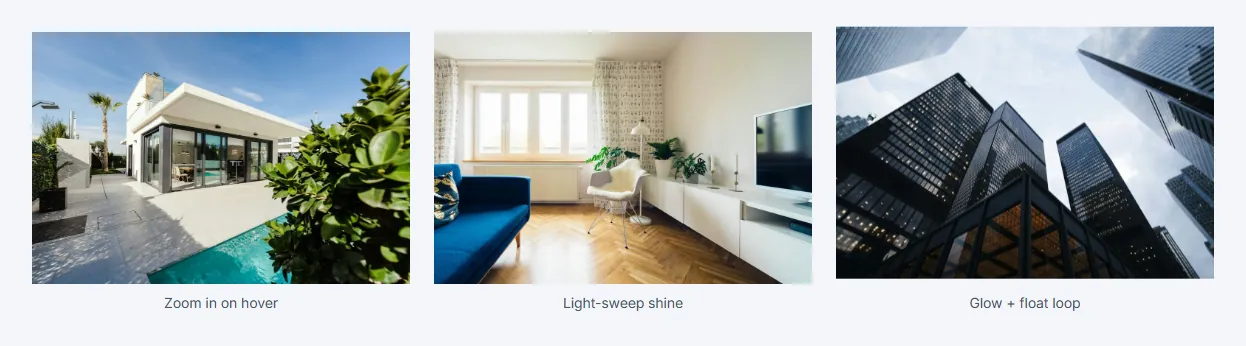
Table of contents
What is the Elementor image hover effects?
Hover effects include zoom, dim, rubber band, glow, a light-sweep shine, prism refraction and a water ripple that follows the cursor. Scroll reveals uncover the image when it enters the screen with a wipe, iris, diamond, curtain, blinds, tiles, brush, ink bleed, liquify or liquid swirl.
Like every MoxKit widget, the Advanced Image has Content and Style tabs with responsive settings, typography, colors and box styling, and it keeps Elementor's Advanced tab. You can switch it off under MoxKit > Widgets if you do not use it; a disabled widget loads no files.
Key features
- Image resolution with srcset, alignment, captions (attachment or custom), link to media file or URL, lightbox.
- Width, max width, height, object fit and position.
- Hover: zoom in, zoom out, dim, rubber, glow, shine, prism, ripple.
- Scroll reveal: fade, zoom, slide, wipe, iris, diamond, curtain, blinds, tiles, brush, ink, liquify, swirl, with direction, stop-motion frames and duration.
- Loops: float, breathe, sway, pulse glow, fade, spin.
- Opacity and CSS filters for normal and hover.
How to add the Elementor image hover effects
Follow these steps to add the widget to a page. You need MoxKit Addons for Elementor installed and Elementor active.
- Open the page in Elementor (Pages > Edit with Elementor).
- In the widget panel, search for "Advanced Image" or scroll to the MoxKit Addons category.
- Drag the Advanced Image widget into a Container.
- Choose the image and its resolution.
- Under Animation, pick a hover effect, a scroll reveal and an optional loop.
- Adjust speed and duration, then style size, border and filters in the Style tab.
- Click Update (or Publish) to save the page.
Designs and examples
These screenshots were taken from a live WordPress site running MoxKit 1.4.4 and Elementor. They show the Advanced Image with the settings described in each caption.
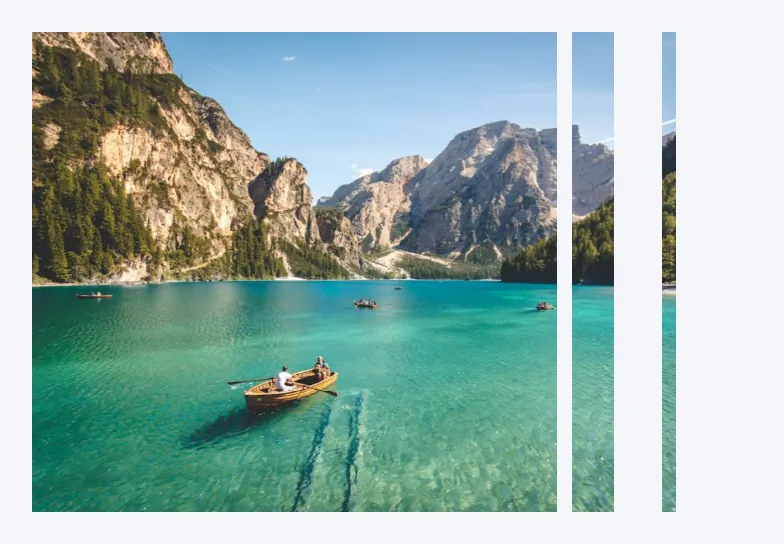
Elementor image hover effects settings: Content tab
The Content tab holds what the widget shows and how it behaves. It has 2 sections and about 18 settings. Settings marked per device can have a different value on desktop, tablet and mobile.
Image
| Setting | Type | Options and notes |
|---|---|---|
| Choose Image | Image | |
| Image Resolution | Select | Thumbnail - 150 x 150, Medium - 300 x 300, Medium Large - 768 x 0, Large - 1024 x 1024, 1536x1536 - 1536 x 1536, 2048x2048 - 2048 x 2048, Full, Custom (default: Large - 1024 x 1024) |
| Image Dimension | Size | You can crop the original image size to any custom size. You can also set a single value for height or width in order to keep the original size ratio. |
| Alignment per device | Choice | Left, Center, Right |
| Caption | Select | None, Attachment Caption, Custom Caption (default: None) |
| Custom Caption | Text | |
| Link | Select | None, Media File, Custom URL (default: None) |
| Lightbox | Select | Manage your site’s lightbox settings in the Lightbox panel. Default, Yes, No (default: Default) |
Animation
| Setting | Type | Options and notes |
|---|---|---|
| Hover effect | Select | None, Zoom in, Zoom out, Fade / dim, Rubber band, Glow, Light sweep shine, Prism refraction, Water ripple (cursor) (default: Zoom in) |
| Scroll reveal | Select | None, Fade in, Fade out (start visible → settle), Zoom in, Zoom out, Slide up, Wipe, Iris (circle opens), Diamond opens, Curtain (opens from the middle), Blinds, Tiles, Brush strokes, Ink bleed (brush ink spreads, image fills in), Liquify (melts into place), Liquid swirl (swirls in like ink in water) (default: Fade in) |
| Reveal direction | Select | Curtain opens across for left and right, and up and down for the other two. From the left, From the right, From the bottom, From the top (default: From the left) |
| Stop-motion frames | Toggle | Plays the swirl in short hand-drawn steps. Off makes it flow smoothly. On / Off (default: On) |
| Ink color | Color | |
| Reveal duration (ms) | Slider | Empty uses each effect’s default: 0.8 s for fade / zoom / slide, 1.2 s for wipe / iris / diamond / curtain, 1.6 s for blinds / tiles / brush, 1.8 s for ink, liquify, and liquid swirl. |
| Loop animation | Select | None, Float, Breathe (zoom), Sway, Pulse glow, Fade pulse, Spin 360° (clockwise), Spin 360° (counter-clockwise) (default: None) |
| Glow color | Color | |
| Hover speed (ms) | Slider | |
| Loop duration (s) | Slider |
Elementor image hover effects settings: Style tab
The Style tab controls the look of every part of the widget: 2 sections, about 18 settings. Elementor's own Advanced tab (margin, padding, motion effects, responsive visibility, custom CSS) is available as usual.
Image
| Setting | Type | Options and notes |
|---|---|---|
| Width per device | Slider | |
| Max Width per device | Slider | |
| Height per device | Slider | |
| Object Fit per device | Select | Default, Fill, Cover, Contain, Scale Down |
| Object Position per device | Select | Center Center, Center Left, Center Right, Top Center, Top Left, Top Right, Bottom Center, Bottom Left, Bottom Right (default: Center Center) |
| Opacity | Slider | |
| CSS filters | Group | All the usual Elementor css filters settings. |
| Opacity (hover) | Slider | |
| CSS filters (hover) | Group | All the usual Elementor css filters settings. |
| Border | Group | All the usual Elementor border settings. |
| Border Radius per device | Spacing | |
| Box shadow | Group | All the usual Elementor box shadow settings. |
Caption
| Setting | Type | Options and notes |
|---|---|---|
| Alignment per device | Choice | Left, Center, Right, Justified |
| Text Color | Color | |
| Background Color | Color | |
| Typography | Group | All the usual Elementor typography settings. |
| Text shadow | Group | All the usual Elementor text shadow settings. |
| Spacing per device | Slider |
Tips and best practices
- Combine one reveal with one subtle hover; too many effects distract.
- Set Width to 100% if you want the image to fill its column.
- Visitors with reduced motion see the image without animations.
Advanced Image FAQ
Is this a replacement for the Elementor Image widget?
It covers the same settings (size, caption, link, lightbox) and adds animations, so you can use it wherever you would use the Image widget.
When does the scroll reveal play?
When the image scrolls into view.
Summary
The Elementor image hover effects in MoxKit is free, works with the free version of Elementor and loads its files only on pages that use it. Zoom, shine, prism, water ripple, wipe, iris, blinds, brush, liquid swirl and more. Install MoxKit Addons for Elementor from WordPress.org, drag the Advanced Image widget onto a page and start with the settings above.