
Elementor Logo Carousel (Image Marquee Widget)
Updated · MoxKit 1.4.4 · Download free on WordPress.org
The Image Marquee widget is a lightweight Elementor logo carousel: a strip of client logos or photos that scrolls in an endless loop with no gap. It runs on CSS animation, so it stays smooth without a slider library.
- Widget name MoxKit Image Marquee
- Panel category MoxKit Addons
- Settings 31+
- Requires Elementor 3.25+ (free)
- Price Free

Table of contents
What is the Elementor logo carousel?
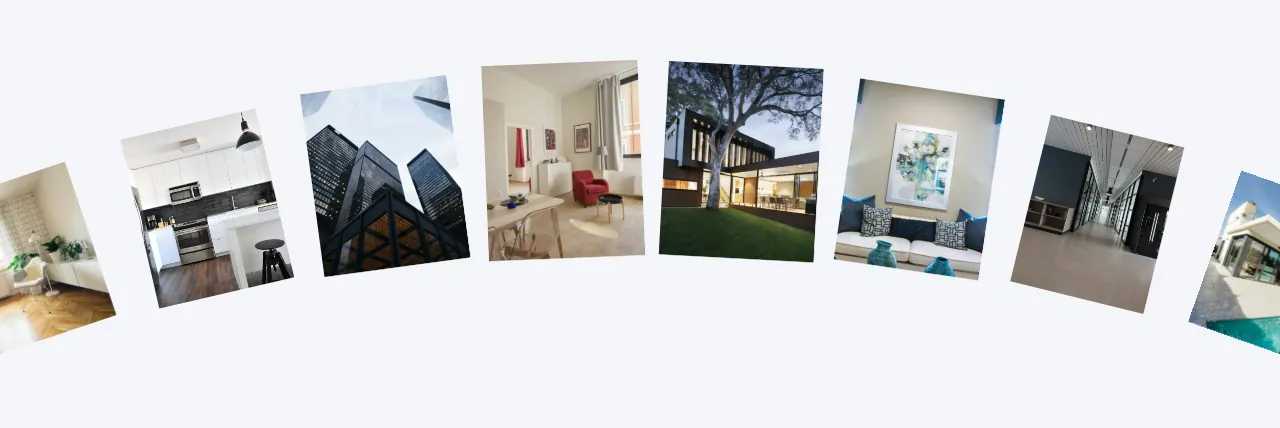
Images can move horizontally, vertically, or along an Arc, a curved path where images tilt and shrink toward the ends. Grayscale and opacity filters, with their own hover values, make logo walls look tidy.
Like every MoxKit widget, the Image Marquee has Content and Style tabs with responsive settings, typography, colors and box styling, and it keeps Elementor's Advanced tab. You can switch it off under MoxKit > Widgets if you do not use it; a disabled widget loads no files.
Key features
- Unlimited images, each with an optional link and label.
- Horizontal or vertical orientation, normal or reversed direction.
- Arc (ellipse) shape with depth per device, tilt along the curve, and size and opacity at the ends.
- Loop duration, spacing and pause on hover.
- Image height, width, fit, radius, border, shadow and padding; automatic height for mixed ratios.
- Grayscale and opacity, normal and hover.
- Vertical and horizontal alignment per device.
How to add the Elementor logo carousel
Follow these steps to add the widget to a page. You need MoxKit Addons for Elementor installed and Elementor active.
- Open the page in Elementor (Pages > Edit with Elementor).
- In the widget panel, search for "Image Marquee" or scroll to the MoxKit Addons category.
- Drag the Image Marquee widget into a Container.
- Add your logos or photos in the Images list. Use SVG or transparent PNG logos for the sharpest result.
- Under Behavior choose the orientation and shape, and set the loop duration.
- In Style > Image set the image height; in Style > Effects add grayscale for a uniform logo wall.
- Click Update (or Publish) to save the page.
Designs and examples
These screenshots were taken from a live WordPress site running MoxKit 1.4.4 and Elementor. They show the Image Marquee with the settings described in each caption.
Elementor logo carousel settings: Content tab
The Content tab holds what the widget shows and how it behaves. It has 2 sections and about 14 settings. Settings marked per device can have a different value on desktop, tablet and mobile.
Images
| Setting | Type | Options and notes |
|---|---|---|
| Images | List | Each item: Image, Link, Alt / label |
Behavior
| Setting | Type | Options and notes |
|---|---|---|
| Orientation | Select | Horizontal, Vertical (default: Horizontal) |
| Shape | Select | Straight line, Arc (ellipse) (default: Straight line) |
| Arc depth per device | Slider | How far the ends sit from the middle. Positive bends the row into an arch (ends lower); negative into a bowl (ends higher). |
| Tilt images along the arc | Toggle | On / Off (default: On) |
| Image size at the ends per device | Slider | 1 keeps every image the same size. Lower shrinks images toward the ends, higher enlarges them. |
| Opacity at the ends per device | Slider | |
| Reverse direction | Toggle | On / Off |
| Loop duration (seconds) | Slider | |
| Pause on hover (hover) | Toggle | On / Off (default: On) |
| Spacing between images per device | Slider | |
| Vertical alignment per device | Choice | Lines up images of different heights, and each image inside its own box when a width is set. Top, Middle, Bottom |
| Horizontal alignment per device | Choice | Left, Center, Right |
| Viewport height per device | Slider |
Elementor logo carousel settings: Style tab
The Style tab controls the look of every part of the widget: 3 sections, about 17 settings. Elementor's own Advanced tab (margin, padding, motion effects, responsive visibility, custom CSS) is available as usual.
Image
| Setting | Type | Options and notes |
|---|---|---|
| Image height per device | Slider | |
| Automatic height | Toggle | Each image keeps its own ratio, so heights can differ. Set a width below, then line the row up with Behavior > Vertical alignment. On / Off |
| Image max width per device | Slider | |
| Object fit | Select | Contain, Cover, Fill, None (default: Contain) |
| Border radius per device | Spacing | |
| Border | Group | All the usual Elementor border settings. |
| Box shadow | Group | All the usual Elementor box shadow settings. |
| Padding per device | Spacing |
Effects
| Setting | Type | Options and notes |
|---|---|---|
| Grayscale | Slider | |
| Opacity | Slider | |
| Grayscale (hover) | Slider | |
| Opacity (hover) | Slider |
Marquee box
| Setting | Type | Options and notes |
|---|---|---|
| Background | Group | All the usual Elementor background settings. |
| Border | Group | All the usual Elementor border settings. |
| Box shadow | Group | All the usual Elementor box shadow settings. |
| Padding per device | Spacing | |
| Border radius per device | Spacing |
Tips and best practices
- Grayscale 100% with opacity 0.6 and full color on hover is a classic client-logo look.
- Give every logo the same height and let the width follow (or turn on automatic height for mixed ratios).
- Fill Label for each image: it becomes the alt text for screen readers.
Image Marquee FAQ
Is this a slider?
No. It is a continuous marquee: images move constantly instead of sliding one by one, which suits logo walls and galleries.
Do links work on the repeated images?
Yes. The copy that keeps the loop seamless keeps working links.
Can images move along a curve?
Yes. Set Shape to Arc and adjust the arc depth per device.
Summary
The Elementor logo carousel in MoxKit is free, works with the free version of Elementor and loads its files only on pages that use it. Horizontal, vertical or arc shape, grayscale and pause on hover. Install MoxKit Addons for Elementor from WordPress.org, drag the Image Marquee widget onto a page and start with the settings above.