
Elementor Navigation Menu Widget
Updated · MoxKit 1.4.4 · Download free on WordPress.org
The MoxKit Elementor navigation menu widget turns any WordPress menu into a complete site header. It shows your menu horizontally or vertically, adds hover pointers and submenu styles, and collapses into a hamburger with a dropdown or an off-canvas panel on phones and tablets.
- Widget name MoxKit Navigation Menu
- Panel category MoxKit Addons
- Settings 130+
- Requires Elementor 3.25+ (free)
- Price Free
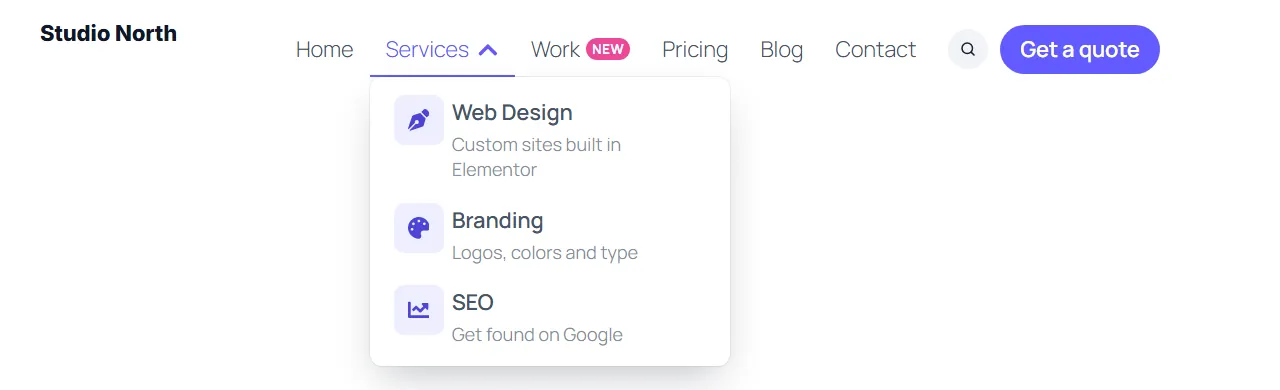
Table of contents
What is the Elementor navigation menu widget?
You do not need Elementor Pro. Pick a menu from Appearance > Menus, choose a layout, and style every state (normal, hover, active) from the Style tab. The same widget also handles the sticky, shrinking, hiding or transparent header, a reading progress bar and one-page scroll-spy.
Like every MoxKit widget, the Navigation Menu has Content and Style tabs with responsive settings, typography, colors and box styling, and it keeps Elementor's Advanced tab. You can switch it off under MoxKit > Widgets if you do not use it; a disabled widget loads no files.
Key features
- Horizontal or vertical layout, with alignment and a stretch-to-full-width option.
- 13 pointers: underline, overline, background, glide, glide line, double, frame, roll, sweep, brush, dot, strike and none, each with fade, slide or grow animation.
- Submenus open on click or hover (with hover intent) in plain, card or caret style, with six animations.
- Rich submenu items with icon tiles and the menu item description.
- Mega menus: add the CSS class
megato a top-level item;mega-cardturns a second-level item into a picture card. - Badges from CSS classes such as
badge-new,badge-hotorbadge-dot. - Search field and a call-to-action button inside the menu.
- Header on scroll: sticky, shrink, or hide on scroll down, plus a transparent header over the first section, blur, shadow and a reading progress bar.
- Scroll-spy for one-page sites: links to
#sectionslight up while that section is on screen. - Mobile menu: six hamburger styles, dropdown or off-canvas panel (right, left, top, bottom, fade, circle), page effects (dim, blur, push, scale), staggered items and drill-down submenus.
- Custom collapse breakpoint in px, em, rem, %, vw or vh, or follow the Elementor Tablet/Mobile breakpoints.
- Keyboard friendly: Escape closes panels, arrows and Space work on submenu toggles.
How to add the Elementor navigation menu widget
Follow these steps to add the widget to a page. You need MoxKit Addons for Elementor installed and Elementor active.
- Open the page in Elementor (Pages > Edit with Elementor).
- In the widget panel, search for "Navigation Menu" or scroll to the MoxKit Addons category.
- Drag the Navigation Menu widget into a Container.
- Under Content > Menu, choose the WordPress menu to show. Create one first under Appearance > Menus if the list is empty.
- Choose the Layout and Alignment, then pick a Pointer under Pointer & hover.
- Open Responsive menu to choose when the hamburger appears (Collapse below) and whether it opens a dropdown or an off-canvas panel.
- Optional: turn on Header on scroll when the widget sits in a MoxKit header template.
- Click Update (or Publish) to save the page.
Designs and examples
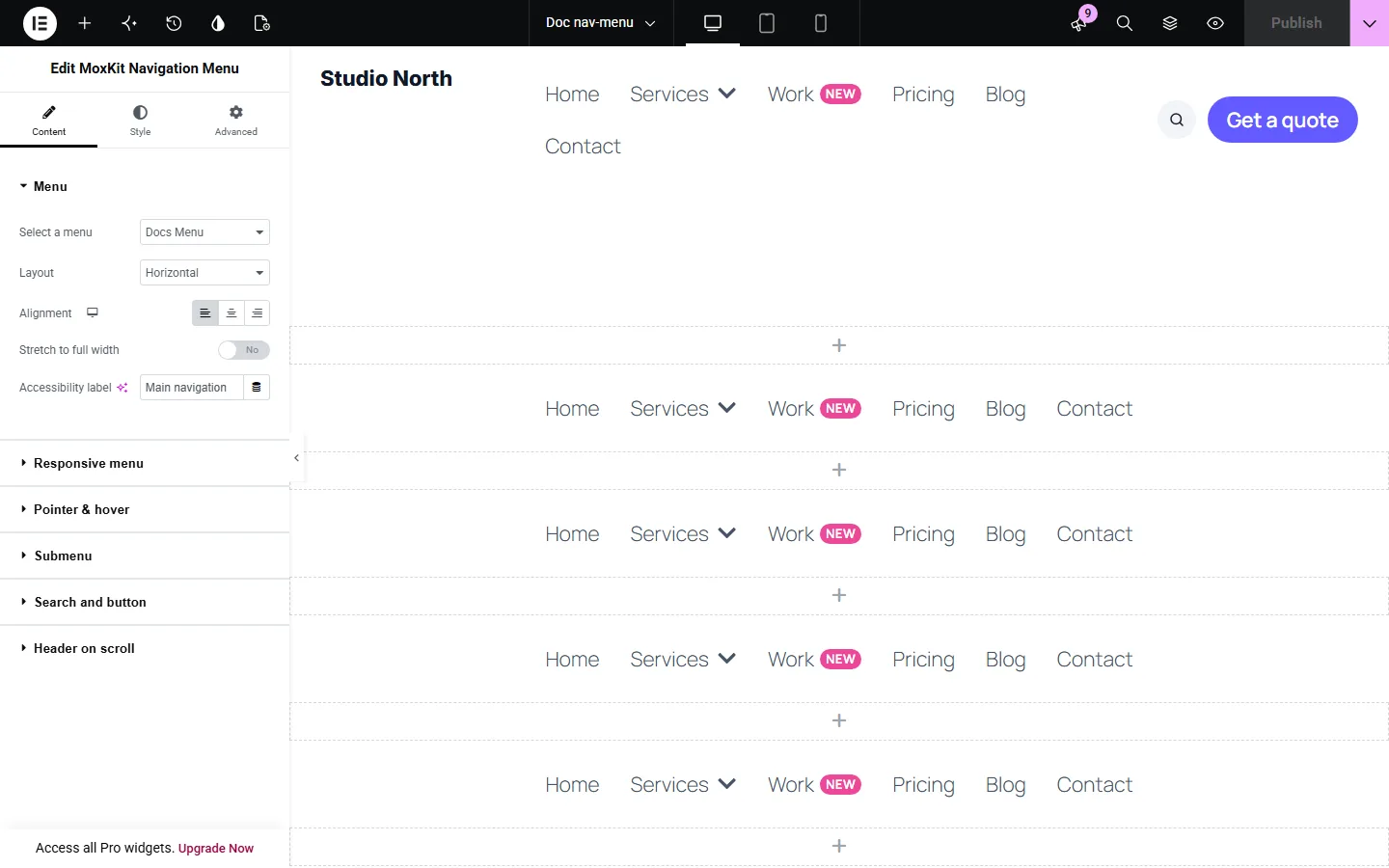
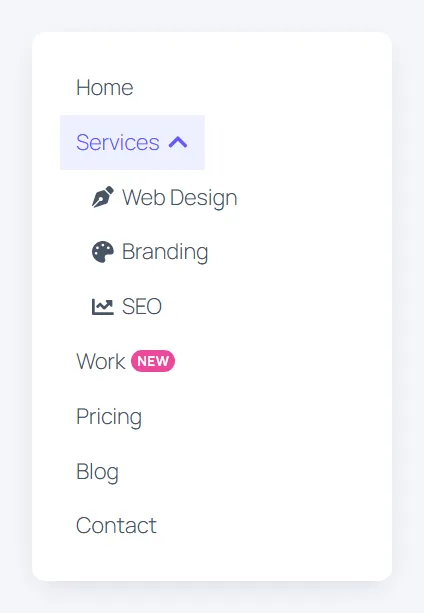
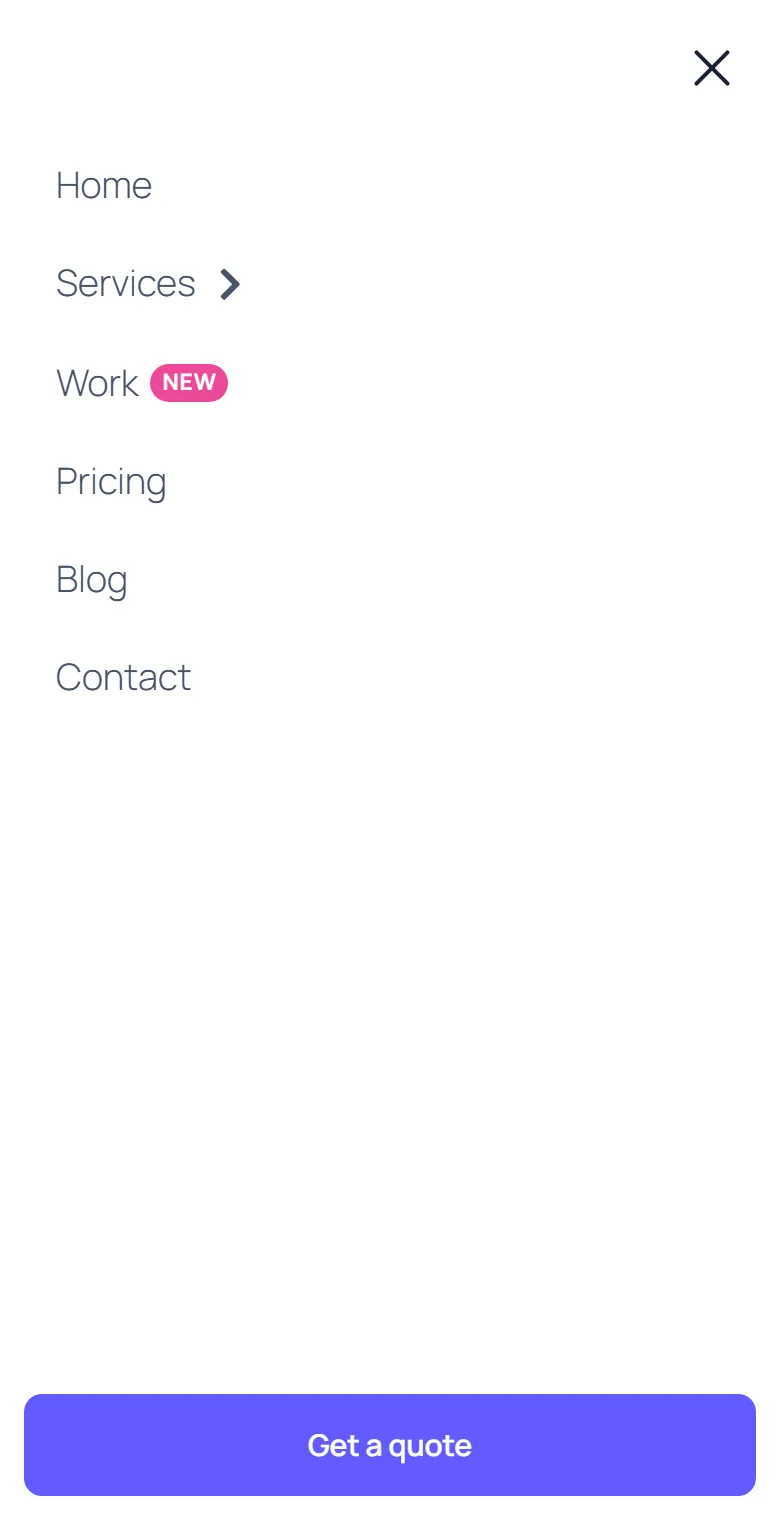
These screenshots were taken from a live WordPress site running MoxKit 1.4.4 and Elementor. They show the Navigation Menu with the settings described in each caption.






Elementor navigation menu widget settings: Content tab
The Content tab holds what the widget shows and how it behaves. It has 6 sections and about 60 settings. Settings marked per device can have a different value on desktop, tablet and mobile.
Menu
| Setting | Type | Options and notes |
|---|---|---|
| Select a menu | Select | Select a menu, Integration menu 6ad5d105105b8, Integration menu 6ad5fc730cf08, Integration menu 6ad5fc8a29fe0, Integration menu 6ad5fcddc4c70, Menu Utama, MoxKit Demo Menu, Parent Test |
| Layout | Select | Horizontal, Vertical (default: Horizontal) |
| Alignment per device | Choice | Left, Center, Right (default: Left) |
| Stretch to full width | Toggle | On / Off |
| Submenus | Select | Fly out to the side, Open below the item (default: Fly out to the side) |
| Icon rail (labels show on hover) | Toggle | Give each menu item an icon (a Font Awesome class such as "fas fa-home" or "fa-solid fa-house" in the item's CSS Classes). On / Off |
| Rail width | Slider | |
| Width when open | Slider | |
| Accessibility label | Text |
Responsive menu
| Setting | Type | Options and notes |
|---|---|---|
| Enable hamburger menu | Toggle | On / Off (default: On) |
| Mobile menu layout | Select | Dropdown, Full-screen off-canvas (default: Dropdown) |
| Panel animation | Select | Slide from the right, Slide from the left, Drop from the top, Rise from the bottom, Fade and zoom, Circle from the button (default: Slide from the right) |
| Panel width per device | Slider | Below 100% the panel becomes a side drawer; tapping outside it closes the menu. |
| Page behind the panel | Select | Dim, Dim and blur, Pushed aside (side drawer), Shrinks back, Unchanged (default: Dim) |
| Dropdown animation | Select | None, Fade, Slide down, Unfold (default: None) |
| Dropdown width | Select | The dropdown no longer shrinks with a narrow menu widget: by default it spans the screen. As wide as the screen, As wide as this widget, Custom (default: As wide as the screen) |
| Custom dropdown width per device | Slider | Lines up with the side of the screen the menu sits on, and never runs off the screen. |
| Menu items appear | Select | All at once, Fade in, one by one, Rise, one by one, Slide in, one by one, Settle from above, one by one (default: All at once) |
| Delay between items (ms) | Slider | |
| Submenus on mobile | Select | Open below the item, Slide in, with a Back button (default: Open below the item) |
| Hamburger style | Select | Icon from the library, Animated: three lines to X, Animated: staggered lines to X, Animated: two lines to X, Animated: lines to an arrow in a circle, Animated: spin to X (default: Icon from the library) |
| Menu text | Text | |
| Show menu text per device | Select | Set it per device, for example to keep only the icon on phones. Show, Hide (default: Show) |
| Hamburger icon | Icon | |
| Collapse below | Select | None, Tablet, Mobile, Custom (default: Tablet) |
| Custom breakpoint | Slider | Custom collapses when the available widget width is at or below this value. % and vw refer to viewport width; vh to viewport height. Tablet and Mobile use the Elementor site breakpoints. |
| Mobile item alignment | Select | Stretch, Left, Center (default: Stretch) |
| Inside the panel | ||
| Logo | Image | |
| Close icon | Icon | Leave empty for a plain X. |
| Button text | Text | Shown at the bottom of the panel. Leave empty for no button. |
| Button link | Link | |
Pointer & hover
| Setting | Type | Options and notes |
|---|---|---|
| Menu hover animation | Select | None, Grow, Lift, Sink (default: None) |
| Pointer | Select | The pointer also marks the current page, and with Scroll-spy the section being read. None, Underline, Overline, Background, Sliding pill, Sliding underline, Double line, Frame draw, Text roll, Color sweep through the text, Brush stroke, Dot, Strike through (default: None) |
| Pointer animation | Select | Fade, Slide, Grow (default: Slide) |
| Dim the other items on hover | Toggle | On / Off |
Submenu
| Setting | Type | Options and notes |
|---|---|---|
| Indicator icon | Icon | |
| Open submenus on | Select | Desktop only. Phones and tablets always open submenus with a tap. Click, Hover (and click) (default: Click) |
| Clicking a parent item | Select | For a parent item with its own URL, on every device. A parent linked to "#" always opens its submenu. Opens its link (the arrow opens the submenu), Opens the submenu (default: Opens its link (the arrow opens the submenu)) |
| Submenu animation | Select | None, Fade, Slide down, Rise, items one by one, 3D flip down, Curtain (default: Fade) |
| Submenu style | Select | Plain, Card with a soft shadow, Card with a pointer (default: Plain) |
| Rich items: icon tiles and descriptions | Toggle | Shows each submenu item's Description (enable "Description" under Screen Options in Appearance > Menus) under its title, and puts item icons in tiles. On / Off |
| Mega menu | ||
| Mega menu width per device | Slider | |
| Mega menu position | Select | Centered under the menu, Aligned with the menu start, As wide as the screen (default: Centered under the menu) |
Search and button
| Setting | Type | Options and notes |
|---|---|---|
| Search | Toggle | A search icon after the menu that opens into a search field. On / Off |
| Placeholder | Text | |
| Button text | Text | A button after the menu. Leave empty for none. |
| Button link | Link | |
| Keep them next to the hamburger | Toggle | Off: search and button are hidden while the menu is collapsed. On / Off |
Header on scroll
| Setting | Type | Options and notes |
|---|---|---|
| Header | Select | Scrolls with the page, Sticky, Sticky, shrinks after scrolling, Sticky, hides on scroll down and returns on scroll up (default: Scrolls with the page) |
| Transparent over the first section | Toggle | The header floats over the hero and takes the "after scrolling" background once the page moves. On / Off |
| Scroll distance before it changes (px) | Number | |
| Background after scrolling | Color | |
| Menu text after scrolling | Color | |
| Blur what scrolls underneath | Toggle | On / Off (default: On) |
| Shadow after scrolling | Toggle | On / Off (default: On) |
| Padding when shrunk (px) | Slider | |
| Logo size when shrunk (%) | Slider | |
| Reading progress bar | Toggle | On / Off |
| Progress bar color | Color | |
| Scroll-spy for one-page sites | Toggle | Menu links to sections on the same page (#id) light up while that section is read, and scroll there smoothly below the header. On / Off |
Elementor navigation menu widget settings: Style tab
The Style tab controls the look of every part of the widget: 6 sections, about 70 settings. Elementor's own Advanced tab (margin, padding, motion effects, responsive visibility, custom CSS) is available as usual.
Menu items
| Setting | Type | Options and notes |
|---|---|---|
| Text color | Color | |
| Background | Color | |
| Text color (hover) | Color | |
| Background (hover) | Color | |
| Pointer color | Color | |
| Typography | Group | All the usual Elementor typography settings. |
| Padding per device | Spacing | |
| Item spacing per device | Slider | |
| Item border radius per device | Spacing | |
| Item dividers | ||
| Divider width | Slider | |
| Divider color | Color | |
Submenu
| Setting | Type | Options and notes |
|---|---|---|
| Typography | Group | All the usual Elementor typography settings. |
| Text color | Color | |
| Menu background | Color | |
| Text color (hover) | Color | |
| Item background (hover) | Color | |
| Width per device | Slider | |
| Offset per device | Slider | |
| Border | Group | All the usual Elementor border settings. |
| Border radius per device | Slider | |
| Box shadow | Group | All the usual Elementor box shadow settings. |
| Item divider color | Color | |
| Padding per device | Spacing | |
| Item padding per device | Spacing |
Icons & indicators
| Setting | Type | Options and notes |
|---|---|---|
| Icon size per device | Slider | |
| Text to indicator spacing per device | Slider | |
| Menu icon color | Color | |
| Submenu indicator color | Color |
Hamburger
| Setting | Type | Options and notes |
|---|---|---|
| Icon color | Color | |
| Text color | Color | |
| Background | Color | |
| Icon color (hover) | Color | |
| Text color (hover) | Color | |
| Background (hover) | Color | |
| Size per device | Slider | |
| Padding per device | Spacing | |
| Border radius per device | Slider |
Badges, search and button
| Setting | Type | Options and notes |
|---|---|---|
| Badge background | Color | |
| Badge text | Color | |
| Search background | Color | |
| Search icon and text | Color | |
| Button | ||
| Background | Color | |
| Text | Color | |
| Hover background (hover) | Color | |
| Border radius per device | Slider | |
Mobile panel
| Setting | Type | Options and notes |
|---|---|---|
| Background | Color | |
| Padding | Slider | |
| Border radius | Slider | |
| Items on mobile | ||
| Typography | Group | All the usual Elementor typography settings. |
| Text color | Color | |
| Line between items | Color | |
| Page dimming color | Color | |
| Submenu on mobile | ||
| Typography | Group | All the usual Elementor typography settings. |
| Hover text color (hover) | Color | |
| Indent per device | Slider | |
| Item padding per device | Spacing | |
| Panel logo | ||
| Width per device | Slider | |
| Max height per device | Slider | |
| Close button | ||
| Icon color | Color | |
| Icon color (hover) | Color | |
| Background (hover) | Color | |
| Icon size per device | Slider | |
| Button size per device | Slider | |
| Position | Choice | Left, Right |
| Panel button | ||
| Typography | Group | All the usual Elementor typography settings. |
| Text | Color | |
| Hover text (hover) | Color | |
| Hover background (hover) | Color | |
| Border | Group | All the usual Elementor border settings. |
| Alignment per device | Choice | Left, Center, Right |
Tips and best practices
- Build the menu inside a MoxKit header template so it appears on every page that uses the MoxKit Full Width layout.
- Give parent items a real URL if you want the text to open that page. The arrow then opens the submenu. Use
#as the URL for a parent that should only open its submenu, or set Clicking a parent item to Opens the submenu. - Turn on Description under Screen Options in Appearance > Menus to type the descriptions that rich submenu items show.
- Add Font Awesome classes such as
fas fa-hometo a menu item's CSS Classes to show an icon next to it.
Navigation Menu FAQ
Does the Navigation Menu need Elementor Pro?
No. It works with the free version of Elementor and uses your normal WordPress menus.
Why does clicking a parent item open a page instead of the submenu?
Since version 1.4.3, a parent with its own URL opens that URL when you click its text, and the arrow next to it opens the submenu. Set Submenu > Clicking a parent item to Opens the submenu to make the whole item open the submenu, or link the parent to #.
How do I make a mega menu?
Add the CSS class mega to a top-level menu item in Appearance > Menus. Its second-level items become column headings with their own links. Add mega-card to a second-level item to show it as a picture card.
Can the header stick to the top when scrolling?
Yes. Under Header on scroll choose Sticky, Shrink or Hide on scroll down. You can also make it transparent over the first section and change its colors after scrolling.
Summary
The Elementor navigation menu widget in MoxKit is free, works with the free version of Elementor and loads its files only on pages that use it. Install MoxKit Addons for Elementor from WordPress.org, drag the Navigation Menu widget onto a page and start with the settings above.