
Elementor Container Notch (Container Notches)
Updated · MoxKit 1.4.4 · Download free on WordPress.org
Container Notches creates the popular Elementor container notch design: the card is cut out around an element that sits on it, such as a button in a corner or a badge on the top edge. The background, border and shadow follow the new shape, and the element inside the notch is never clipped.
- Extension Container Notches
- Where Container > Style > Notches
- Switch MoxKit > Extensions
- Price Free
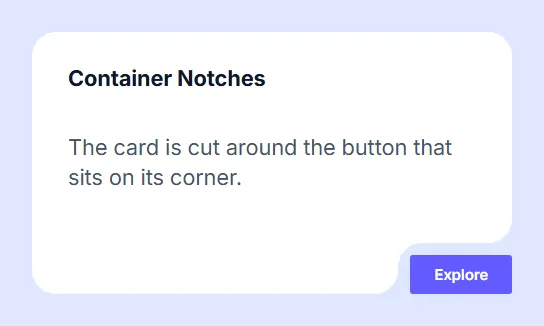
Table of contents
What does Container Notches do?
Elements inside the Container with Advanced > Position: Absolute get a notch automatically. Notches near an edge open onto it, so a button can sit in a tab at the top or a badge in a corner.
Container Notches is an extension: it adds settings to Elementor's own elements instead of adding a new widget. Turn it on or off for the whole site under MoxKit > Extensions.
Features
- Automatic notches around absolutely positioned elements.
- Mark any element inside or next to the Container to always cut a notch.
- Space around the element, notch corner radius and "open to the edge within" distance.
- Background, border and shadow follow the shape.
- The script loads only on pages that use it.
How to use the Elementor container notch
- Enable Container Notches under MoxKit > Extensions.
- Add a widget (for example a Button) inside a Container and set its Advanced > Position to Absolute; place it in a corner.
- Select the Container and turn on Style > Notches > Cut notches around elements.
- Adjust the space and corner radius.
- Click Update to save the page.
Container Notches settings
All settings live in Container > Style > Notches.
| Setting | Type | Options and notes |
|---|---|---|
| Cut notches around elements | Toggle | On / Off |
| Space around the element | Slider | |
| Notch corner radius | Slider | Empty: the same as the container’s Border Radius. |
| Open to the edge within | Slider | A notch this close to an edge opens onto it. Farther in, it becomes a rounded hole. |
When to use a container notch
Notches make a card feel connected to the element on it: a "Read more" button in the bottom-right corner, a price badge on the top edge, a profile photo breaking out of the card, or a tab at the top of a pricing card. Because the background, border and shadow follow the cut, the effect looks like one shape instead of an element simply placed on top.
How the notch is calculated
MoxKit measures each marked element, adds the space you set around it, rounds the corners with the notch radius and cuts that shape out of the Container. If the element is within the "open to the edge" distance of a side, the notch opens onto that side, so a corner button gets an L-shaped cut. The shape is recalculated when the window is resized.
Tips
- Give the Container a background color or image; the notch is visible against the page behind it.
- Use a notch radius close to the Container radius for a smooth look.
Summary
The Elementor container notch comes free with MoxKit Addons for Elementor. Switch it on under MoxKit > Extensions, open Container > Style > Notches and pick the options described above. It works with the free version of Elementor.
Container Notches FAQ
Is the element inside the notch cut off?
No. Only the Container is shaped; the element stays whole.
Does the shadow follow the notch?
Yes. Background, border and shadow all follow the shape.
Can one Container have several notches?
Yes. Every absolutely positioned or marked element gets its own notch, for example a badge at the top and a button at the bottom.
Does it work on phones?
Yes. The notch is recalculated when the layout changes, so it follows the element on every screen size.